
The PPC world changes quickly — from Google Ads updates and bidding strategies to analytics integrations and automation trends. Telegram has become one of the key platforms where Ukrainian PPC specialists share case studies, discuss campaign optimizations, and post industry news in real time.
Here’s a curated list of Ukrainian PPC Telegram channels that are worth following if you want to stay ahead in paid advertising.
- RSS: Google Ads + Analytics
- Маркетинг Киця | Think Outside the Ads
- Webmagic новини — PPC, Google Ads, Web Analytics, GTM
- 🇺🇦 Нескромний Маркетолог 😎 — Василь Волошин
- 🛒 Товарка простою мовою | Google Shopping | Merchant Center
- Street PPC | Google Ads
- Таня Михальченко | Просто нормальна спеціалістка з Google Ads
- Sandyriev Digital Druid
- Контекст має значення | Google Ads і трохи гумору
- Marketing Loopholes
- Яна Ляшенко — Google-логіст — Google Ads + Performance Max + Google Shopping Київ — Україна
- Є тємка
- Де мої конверсії? | Google Ads | Digital Marketing
- PPC|SEO — новини, статті, кейси, івенти
Subscribing to high-quality PPC Telegram channels is an excellent way to stay updated on new strategies, platform changes, and real-world case studies. Whether you’re focused on e-commerce, lead generation, or brand awareness, these communities can give you insights and ideas to improve your campaigns.
SEO is evolving rapidly — from algorithm updates and Google changes to new tools and niche strategies. Telegram has become one of the key platforms where Ukrainian SEO specialists share insights, discuss trends, and publish real-world cases.
Here’s a curated list of Ukrainian SEO Telegram channels worth following — whether you’re a beginner, a technical SEO, or an agency leader.
- SEO BAZA
- Devaka Talk
- Sneex SEO 🇺🇦
- Badass SEO 🌭
- by @shmeo
- Павлуцький Олександр | Repalm
- Dmytro Sokhach: SEO, Site Flipping, SaaS Marketing 🇺🇦
- SEOPUB
- Black ASO Gambling – блог 🇺🇦
- Дредасте SEO
- SEO inside
- SEObox
- Need for SEO
- SEO, гроші, два джуна
- що за шум?
- PPC|SEO — новини, статті, кейси, івенти
TikTok has over 1.7 billion monthly active users. Short, instantaneous, user-generated videos are an effective way to reach a wide audience, especially Generation Z, which is difficult to reach on more traditional platforms. This makes TikTok an extremely valuable social network for companies and brands. TikTok has a high organic reach (especially when using optimization tools to increase views).
Consider a situation where you need to download a published video from a social network without a watermark. For example, a user created a video directly in the app using TikTok and published it. In this case, you won’t be able to upload the video without a watermark. However, there are several ways to download videos from TikTok without a watermark.
Information from TikTok on how to upload videos
TikTok allows other users to upload any videos that have this feature.
Information provided by the network on how to upload videos to TikTok (data from Help):
• When you allow people on TikTok to download your videos, they can save your video to their device, convert your videos to live photos, GIFs, and directly share your videos to other third-party platforms.
• If you don’t allow people on TikTok to download your videos, they also can’t convert your videos to live photos, GIFs, or directly share your videos to some third-party platforms. Keep in mind, they can still share your video through a link or through direct messages on third-party platforms. You’ll still have the download and all the sharing options for your own videos.
• Once you turn the video downloads setting off, people can’t download videos that you already posted and your future videos.
• If the video downloads setting was on and you turned it off, any of your videos that were downloaded when the setting was on won’t be impacted. This means that any downloaded videos will stay on another person’s device.
• If your account is private or if you’re under the age of 16, your video downloads setting is turned off by default and you can’t turn it on. If you change your account to public, you may choose to turn this setting on or off.
If you need to change the settings for who can view your videos, you can do so in the video privacy settings.
How to control who can upload videos
To enable or disable video downloading:
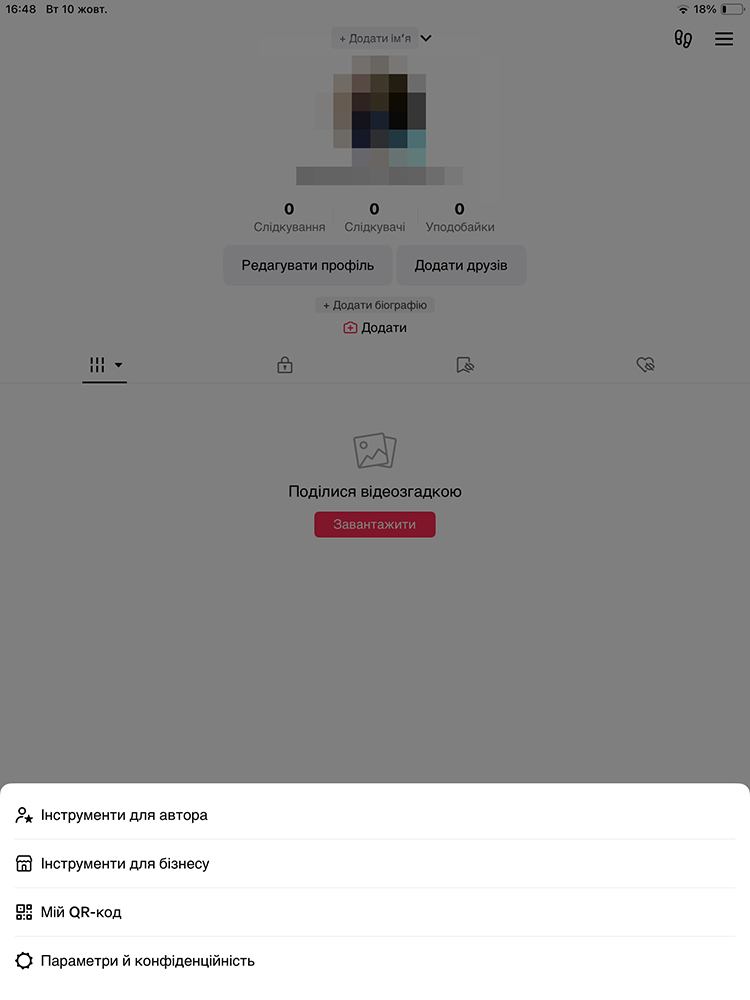
1. In the TikTok app, go to your profile and click on the Menu button at the top.
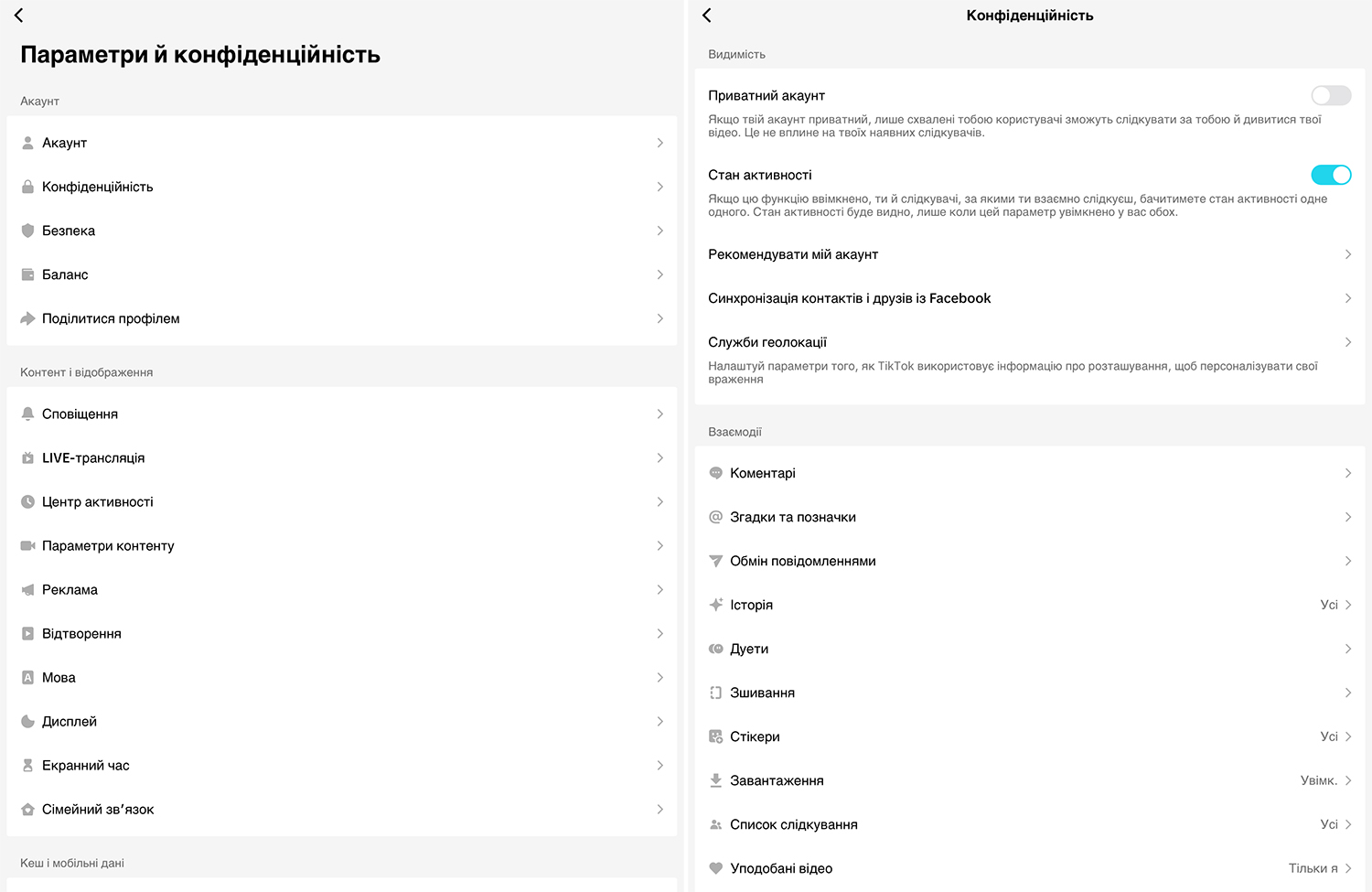
2. Go to Settings and privacy – Privacy – Downloads.
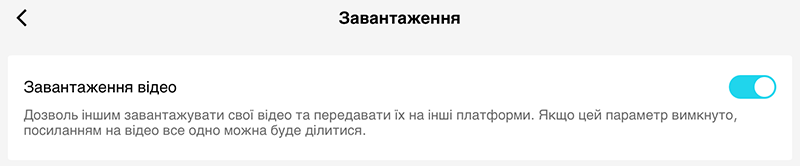
3. Enable or disable the Video upload option.
Now let’s look at ways to download videos from a social network.
How to download video from TikTok
Let’s look at a simple way – when a user mentions the need to save a video before publishing it.
How to save a TikTok video before publishing it
That’s right, it’s better to upload the video you made before publishing it to have your own source video.
For example, we’ve edited the video, added the necessary stickers, etc., and now we’re at the final stage – publishing. Then, to save the video before publishing:
1. On the processing screen, click Save Video (second icon from the top).
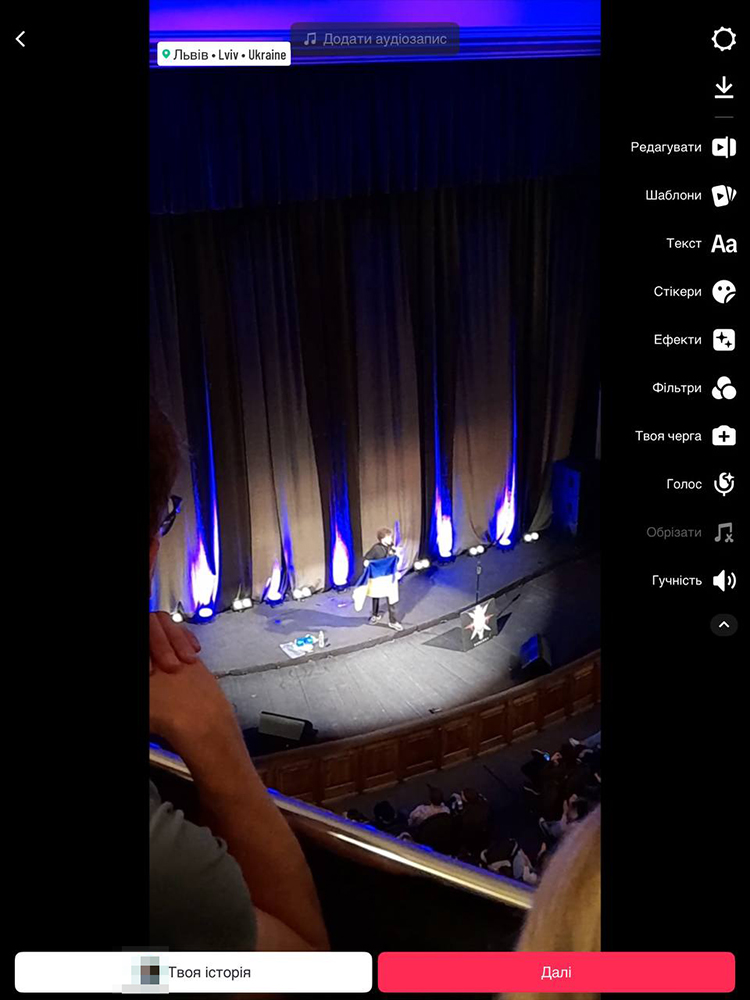
Now the video is saved to your device in photos without a watermark.
How to save a video via TikTok
Now let’s look at the obvious way – uploading videos using the platform itself, because they provide for it. However, you need to understand that the video will be saved with a watermark.
To download the video:
1. In the TikTok app, go to the video you want to download.
2. Click the Share button on the right (it looks like an arrow).
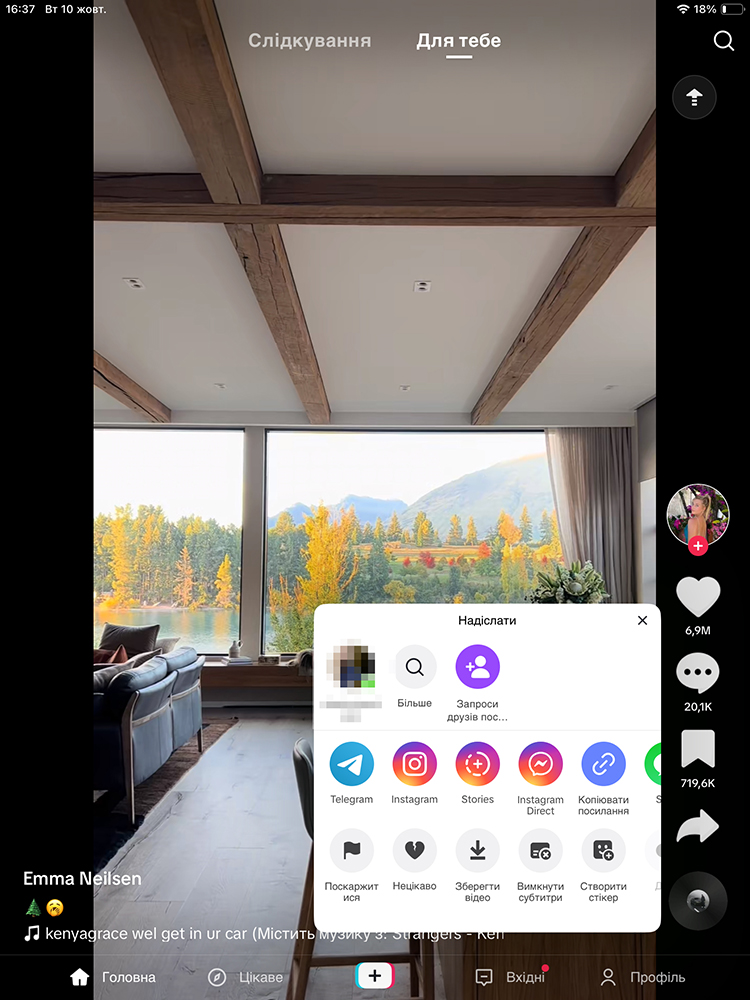
3. Click on Save video – More – Save video.
If you cannot save the video, it means that the author does not allow it.
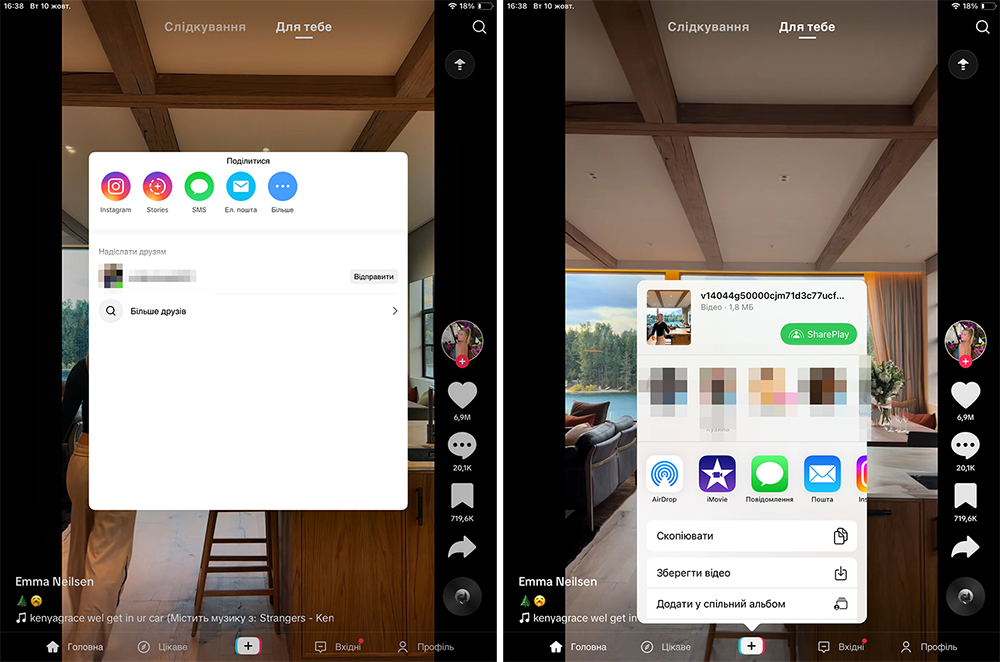
The saved video is in the device’s Gallery. Yes, it contains a watermark.
Let’s move on to the ways to upload videos without watermarks.
Tools to download videos from TikTok
There are special programs for downloading but we’ll start with the easy method – downloading from Instagram.
Download video TikTok via Instagram
Yes, you can download TikTok videos on Instagram. And even those videos that the author has forbidden to download (at least, that’s what the Internet says).
How to download TikTok video on Instagram:
- Open the required video in TikTok;
- Click on Share;
- Choose Instagram Stories as the source of reposting;
- The service redirects us to Instagram Stories, where we click the Save download icon.

Done. The video is saved to your device. But again with a watermark.
Why did we need to analyze this method? Because it allows you to download any video from TikTok.
SnapTik – a program for downloading videos from TikTok
To download videos, you can use third-party programs specially designed to download videos without a watermark.
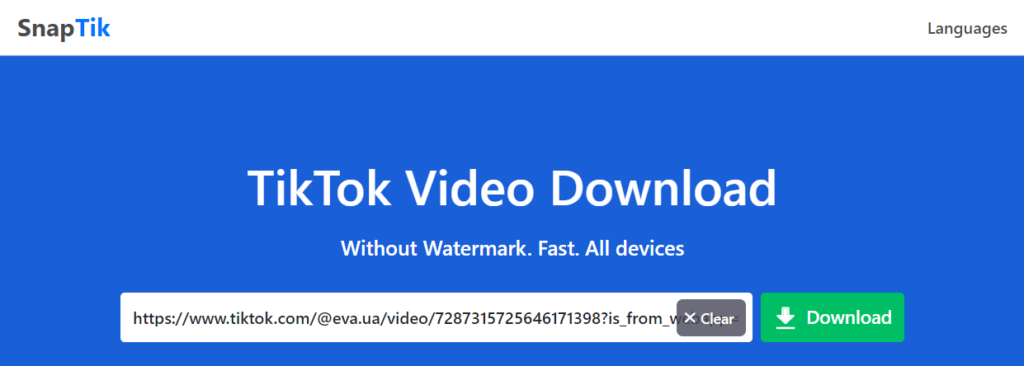
SnapTik is available as an app on your phone and as a desktop program in a browser. We will test the desktop version.
- Go to the SnapTik website and enter the link to the desired video in the link field, then click Download.
2. In the next window, select the option you like from the 4 offered and click on Download.
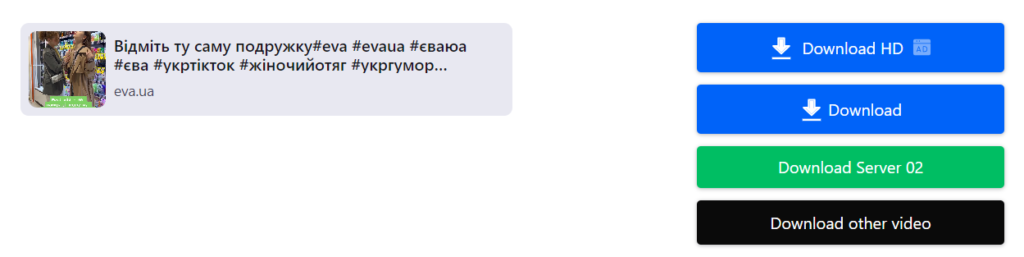
Videos are uploaded to the device without a watermark. In addition, SnapTik is completely free.
SnapTik is a good option because the user does not need to install any program on the computer or phone. All that is required for the download is a link to a TikTok video.
Musical Down TikTok Downloader
MusicallyDown – is another service for downloading TikTok videos without watermark.
1. Go to the MusicallyDown website and paste the link to the desired video into the free field and click on Download.
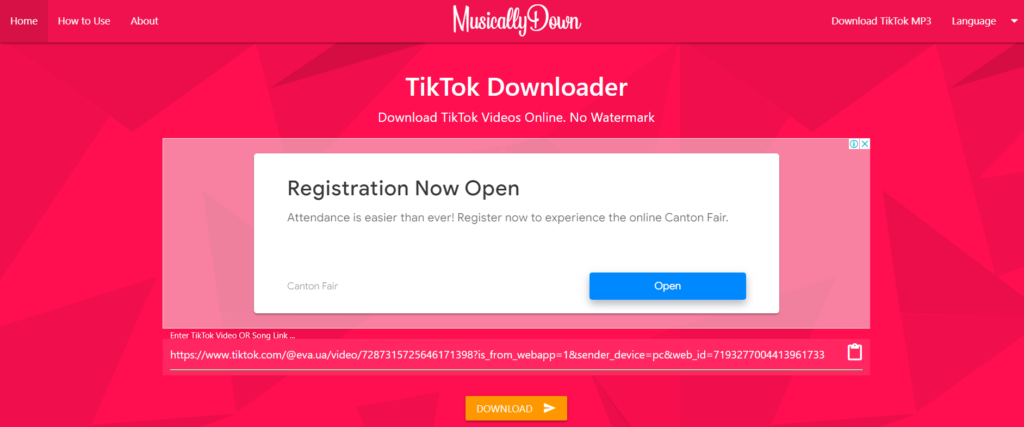
2. In the new window that opens, select the option you want to download and click on the button.
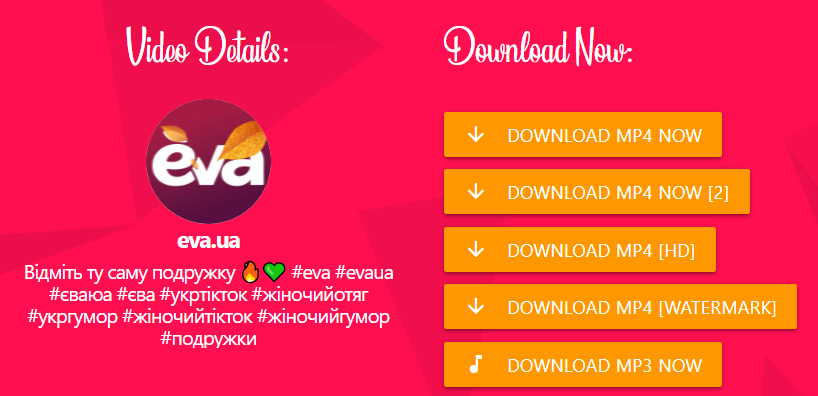
3. Done. The video is downloaded to your desktop without a watermark.
Next, let’s look at other ways.
TikSave – Video Planner
The application is available for iOS devices.
The functionality of the TikSave app is similar to SnapTik – the link to the TikTok video you want to download must be pasted into TikSave.
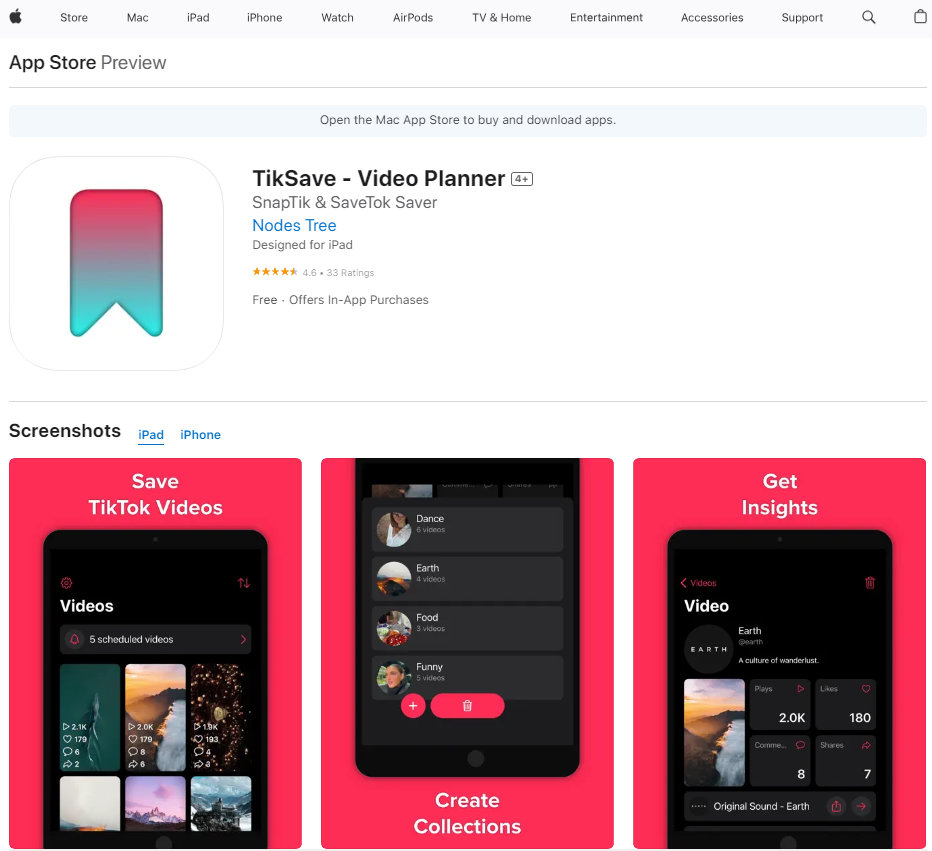
However, TikSave is subscription-based ($4.99 per month after a 3-day trial). The app has more features than SnapTik: in addition to downloading TikTok videos, you can use TikSave to extract and share audio from TikTok videos, view video analytics, and more.
If you need to regularly download a large number of videos, it makes sense to subscribe.
Telegram-bot TiVoTo
TiVoTo – Telegram bot for chats.
The bot returns the video from TikTok to the chat as a downloaded video. In other words, the user posts a link to a TikTok video, and the bot sends it to the chat as a regular video that can be downloaded. And without a watermark.
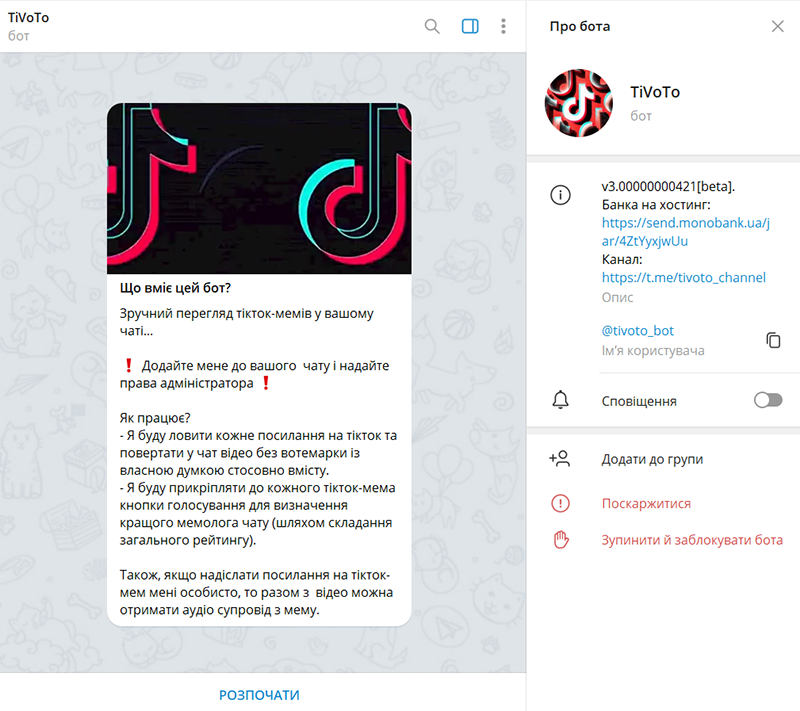
To get started, click Start. Next, upload a link to the video from TikTok. The bot will process it and provide a video without a watermark.
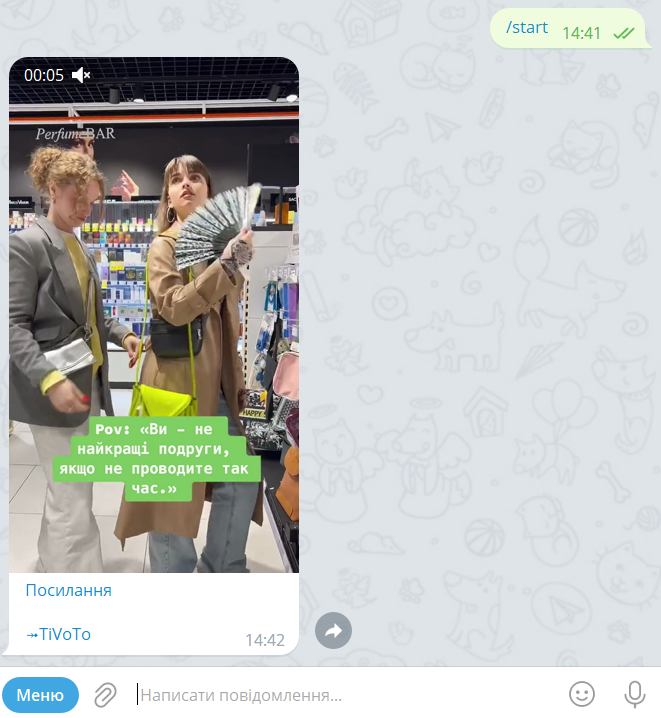
The provided video is ready to be downloaded to your device.
Conclusion
Hopefully, these methods will help you download any TikTok videos without annoying watermarks. But it is better to download your videos before you post them.
Important: We do not advocate downloading TikTok videos for commercial or illegal use. Please ask permission from the authors before reusing the video.
Advertising usually consists of visuals and text. The purpose of advertising is to attract the user’s attention so that he or she clicks on the ad.
Ad sizes and ad formats on Facebook are changing, so it’s crucial to have up-to-date banner sizes when setting up your ad campaigns so that they don’t get cut off during the display or rejected by the system altogether.
We have already provided a guide to video specs and sizes, including those for Instagram ads. Today it’s the turn of Facebook.
Facebook video ad specs
Facebook is now very much focused on video. And the statistics prove it: the vast majority of Facebook users (98.5%) browse the site from their mobile devices, and 81.8% access the app only on mobile devices. This means that advertising needs to be adapted to these devices.
The network itself provides the following infographic on image proportions:
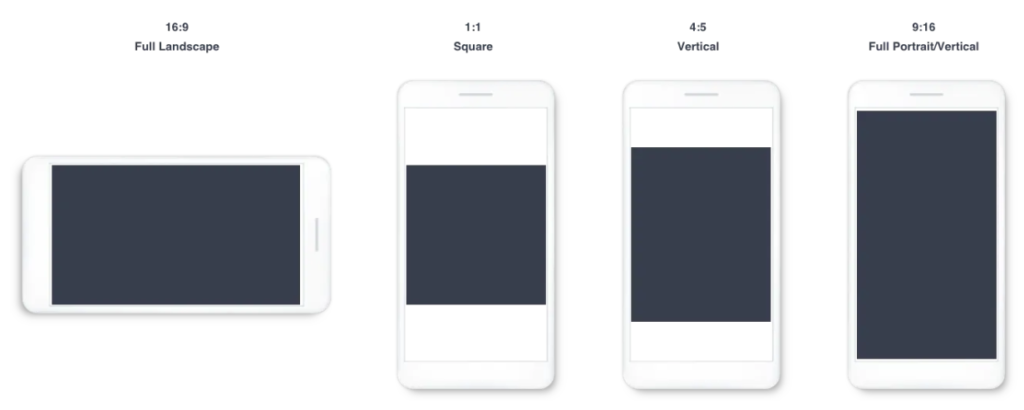
Fig. 1 — Proportions of Facebook ad images
The network also recommends uploading “highest resolution source video available without letter or pillar boxing”.
For mobile, videos should be vertical (4:5, 9:16, or 16:9) or square (1:1) if the video is to be shown on both devices.
As for the length of the video: Facebook recommends keeping videos short, at 15 seconds or less, so that users watch them to the end. Also, make your videos understandable without sound or add subtitles so that users who view the feed with the sound off can understand what the ad is about.
In general, Facebook suggests using motion and sound to attract attention, tell a brand story, or showcase product benefits.
Below are the specifications and ad sizes required for all types of video ads on Facebook.
Feed video ads
Feed video ads are classic Facebook video ads that appear among content from friends, groups, pages, and advertisers in a user’s news feed.
Information about text components:
- the recommended length of the headline is 25 characters (more will be cut out);
- the recommended length of the main text is 125 characters (the text will be in a collapsed form longer and can be read after it is expanded);
- max link description – 30 characters (longer will be cut off).
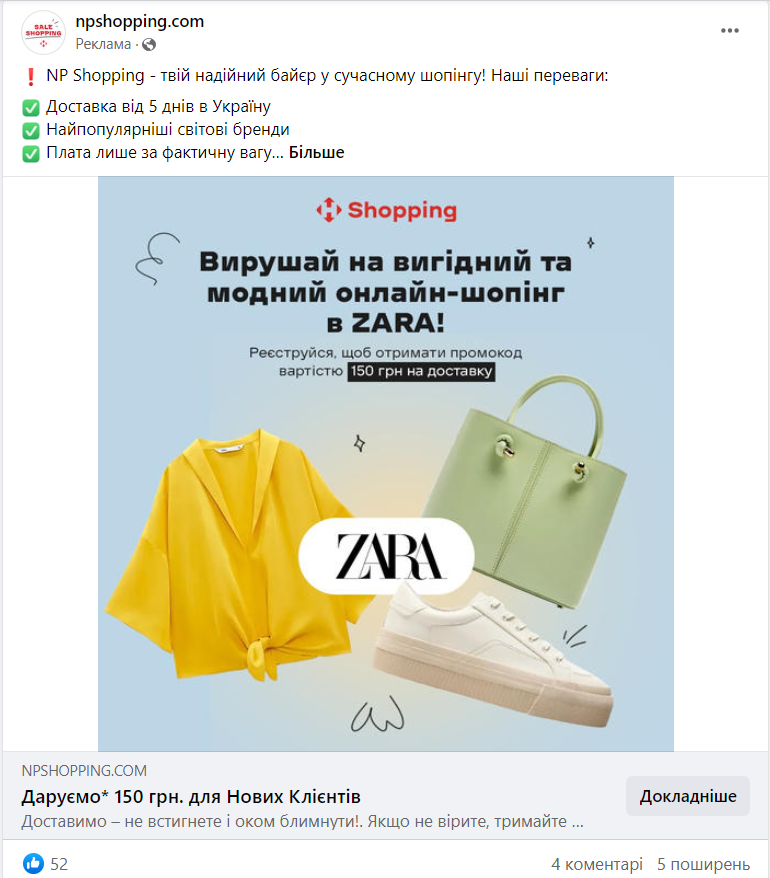
Fig. 2 — Advertising in the Facebook feed
Specification of ads in the feed:
- video file type: MP4, MOV, or GIF;
- video ratio: 4:5 for mobile devices only or 1:1 (for computers or mobile devices);
- min width: 120 pixels;
- min height: 120 pixels;
- size: min 1080 x 1080 pixels;
- file size: max 4 GB;
- video duration: from 1 second to 241 minutes;
- video settings: H.264 compression, square pixels, fixed frame rate, progressive scan, and 128 kbps+ AAC stereo audio compression;
- video captions: optional, but recommended;
- video audio: optional, but recommended.
Facebook Instant Articles
Facebook Instant Articles is a mobile-optimized ad format that allows content creators to share interactive, fast-loading articles on Facebook.
To develop a beautiful formatting or design similar to the brand design of the site, the network recommends using the Style Editor. It should be remembered that although sound is optional for this type of advertising, subtitles are not supported for such content.
Data about the text:
- recommended title length — 25 characters (more will be cut off);
- max link description — 30 characters (more will be cut off).
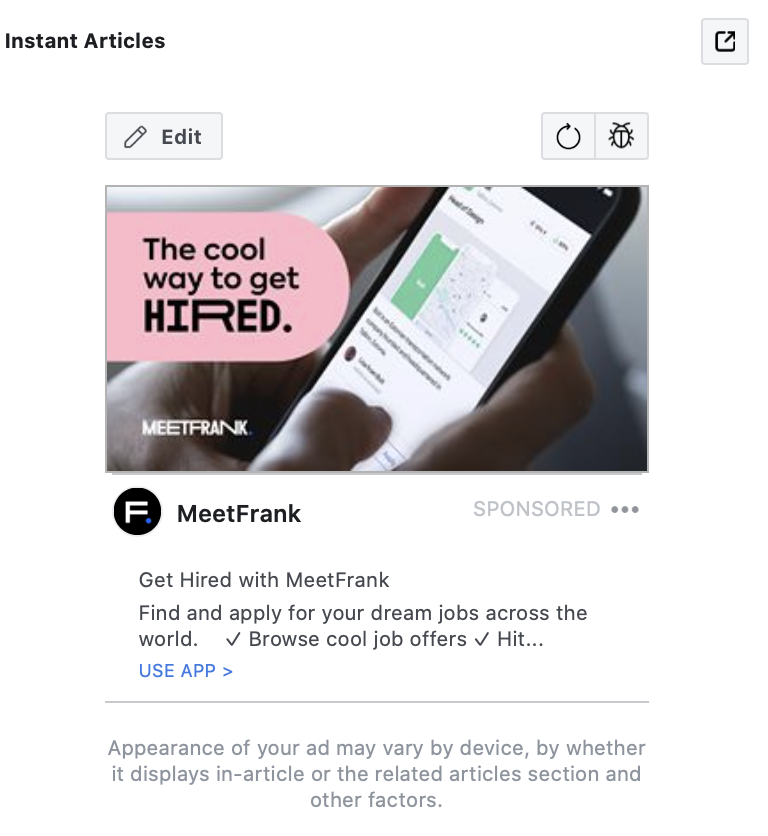
Fig. 3 — Advertising on Facebook Instant Articles (source)
- file type: MP4, MOV or GIF;
- min width: 120 pixels;
- min height: 120 pixels;
- size: min 1080 x 1080 pixels;
- video ratio: 16:9;
- aspect ratio: 1:1 (for computer or mobile) or 4:5 (mobile only);
- max file size: 4 GB;
- min duration: 1 sec;
- max duration: 241 minutes;
- video settings: H.264 compression, square pixels, fixed frame rate, progressive scan, and 128 kbps+ AAC stereo audio compression;
- video captions: optional, but recommended;
- video audio: optional but recommended;
- main text: 125 characters;
- title: 27 characters;
- description: 27 characters.
You can also use 360-degree video for some advertising purposes. When users see an ad of this type, they can rotate their device to view the ad in full view.
In-stream video ads
Facebook In-Stream Video Ads allow advertisers to show 5-15-second video ads in the middle of a video that are unskippable to people who are already watching Facebook videos on desktop or mobile devices.
When setting up In-Stream ads, advertisers can selectively choose the target audience for video ads in this format. Since these ads are targeted to a specific audience, viewers of the same video can see different ads depending on their interests.
In-Stream ads on Facebook are played during the video (in the middle of the video) by content creators who specifically tailor their content to the Facebook audience. Here, ads appear only on mobile devices and only after 60 seconds of the main video content.
Video ads on Audience Network can appear before or during video content (at the beginning or in the middle) on hundreds of publisher websites and apps, and can last 10-30 seconds. With the help of Audience Network, In-Stream video ads are available on both mobile devices and desktops.
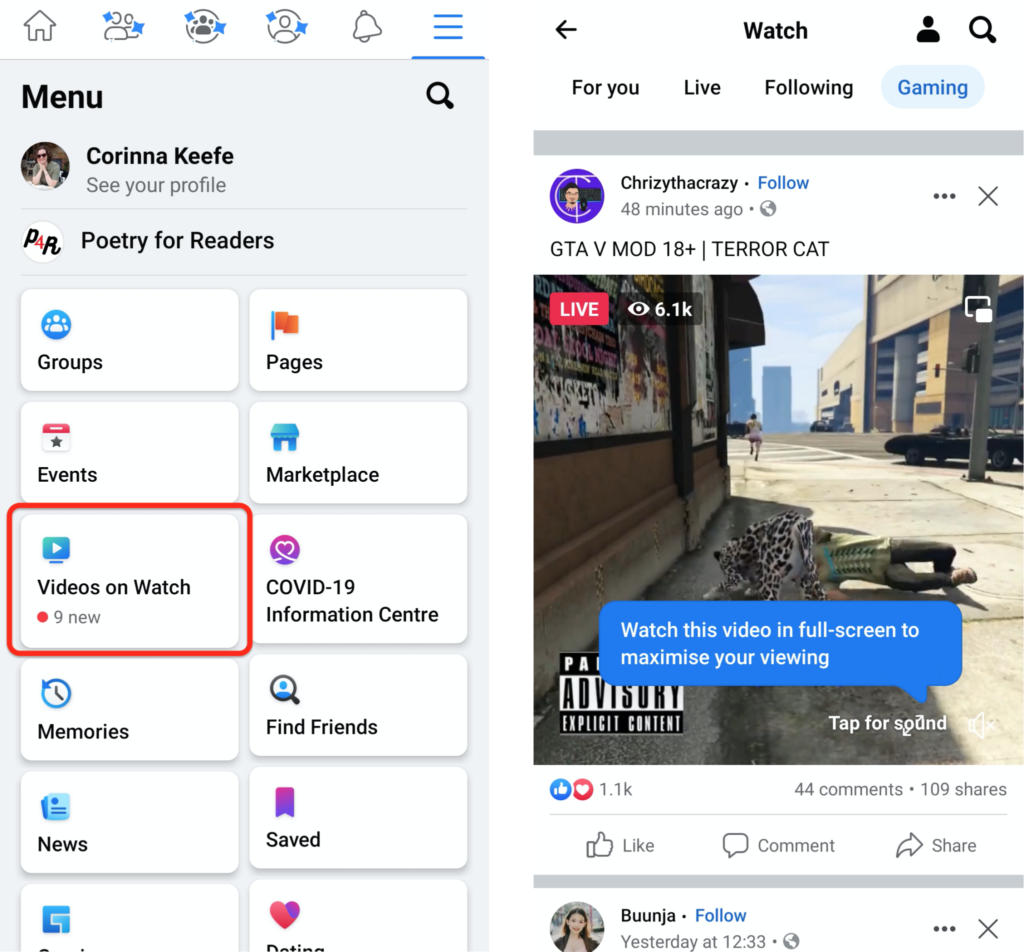
Fig. 4 — Facebook In-Stream Ads (source)
- file type: MP4, MOV or GIF;
- min width: 120 pixels;
- min height: 120 pixels;
- size: minimum 1080 x 1080 pixels;
- video ratio: 16:9 or 1:1;
- file size: max 4 GB;
- min duration: 5 seconds (Facebook ads), 10 seconds (Audience Network);
- max duration: 15 seconds (Facebook ads), 30 seconds if you choose streaming only, 120 seconds (Audience Network).
Search results video ad
Facebook search results video ads appear when people search for content on Facebook or in the Marketplace. These ads support both images and video.
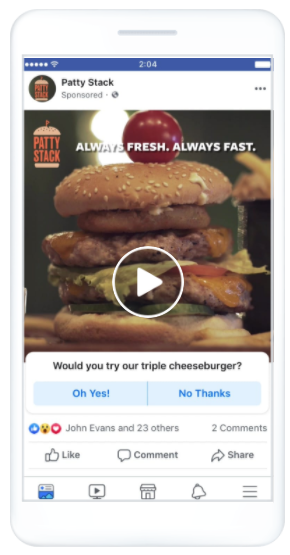
Fig. 5 — Video ads in the feed (source)
- file type: MP4, MOV or GIF;
- min width: 120 pixels;
- min height: 120 pixels;
- size: min 1080 x 1080 pixels;
- video ratio: 1:1;
- file size: max. 4 GB;
- min duration: 1 sec;
- max duration: 241 min.
Video feed ads
Besides the news feed, this is another placement where Facebook shows video ads. When a Facebook user clicks on a video from their News Feed, it opens in the Video Feed (or Facebook Watch), which contains suggested videos that appear as users scroll down the page.
A video channel opens when a user clicks on a video in their home news feed, offering additional videos they might like. Video ads appear in between these regular videos.
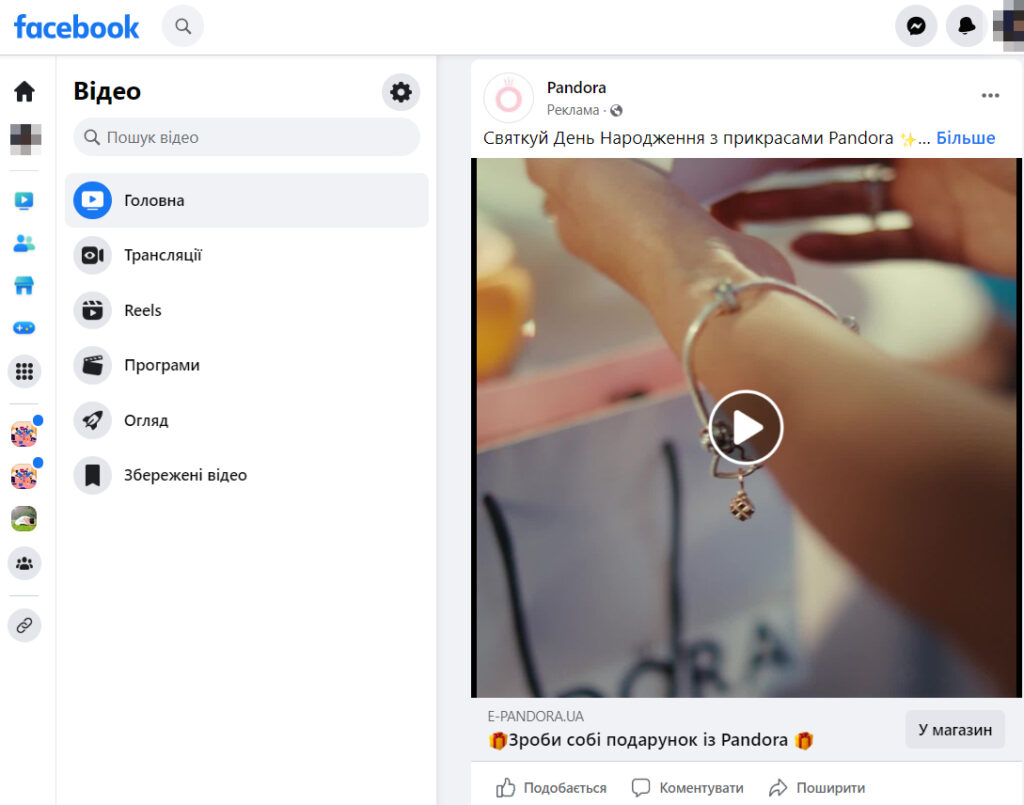
Fig. 6 – Ad on the Watch tab
- file type: MP4, MOV or GIF;
- min width: 120 pixels;
- min height: 120 pixels;
- size: min 1080 x 1080 pixels;
- video ratio: 4:5;
- file size: max 4 GB;
- min duration: 1 sec;
- max duration: 241 min.
Right column video ads
Right column video ads are a desktop-only format. This type of ad is most often displayed on the right side of the screen next to Facebook pages, but it can also appear elsewhere.
Facebook right column ads are similar to News Feed ads, except that they contain only landscape images (no video) and are smaller. These used to be standard Facebook ads, but now they are mainly targeted to mobile channels.
- file type: MP4, MOV or GIF;
- min width: 120 pixels;
- min height: 120 pixels;
- size: min 1080 x 1080 pixels;
- video ratio: 1:1 for computer or mobile device or 4:5 for mobile only;
- file size: max 4 GB;
- min duration: 1 sec;
- max duration: 241 minutes.
Facebook Business Explore
Facebook Business Explore helps users discover new businesses that may be of interest to them in certain niches (restaurants, clothing, or beauty). When a user stops scrolling through the feed to read or view a post from a particular business page, Facebook will show them a new Explore Businesses section below the post, featuring other businesses similar to the one they are viewing. Business Explore content includes both paid ads and regular posts.
- file type: MP4, MOV or GIF;
- min width: 120 pixels;
- min height: 120 pixels;
- size: min 1080 x 1080 pixels;
- video ratio: 1:1 (for computer or mobile) or 4:5 (for mobile only);
- file size: max 4 GB;
- min video duration: 1 sec;
- max video duration: 241 minutes.
Facebook image ad specs
Social networks are focused on visuals. It’s hard to imagine Instagram or Facebook without an attractive image. Users won’t even notice the ad, let alone click through. Therefore, each ad that an advertiser uploads to Facebook must have at least 1 image, or several.
Different locations and formats require different sizes, so advertisers need to be sure that all ad requirements and specifications are met to ensure successful moderation.
Depending on the purpose of the ad (e.g., awareness or engagement), you can use a panorama or 360° photo in Facebook ads. Facebook will recognize them automatically.
The network offers to use:
- the recommended length of the header is 25 characters (a longer header will be cut off);
- body text length – 125 characters (longer text will be collapsed and can be read after expansion);
- max link description – 30 characters (more will be cut off).
Feed image ads
These are the classic Facebook image ads that appear between the content of friends, family, groups, and pages in your News Feed.
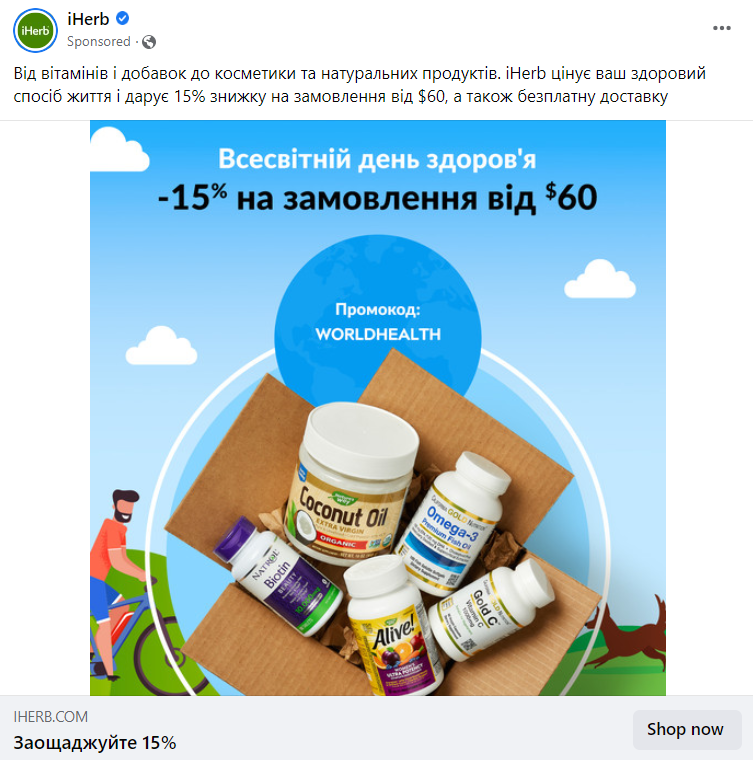
Fig. 7 — Graphic advertising in the feed
- file type: JPG or PNG;
- ratio: from 1.91:1 to 1:1;
- size: minimum 1080 x 1080 pixels;
- file size: max. 30 MB;
- min width: 600 pixels;
- min height: 600 pixels.
Right column image ads
This desktop-only format is most often displayed on the right side of the screen next to Facebook pages, but it can also appear elsewhere.
Since the images in the right column are very small, Facebook recommends not adding text to them.
- the recommended length of the title is 25 characters (longer lengths will be cut off);
- body text length – 125 characters (a longer description will be collapsed and can be read after the page is expanded);
- max link description: 30 characters (longer links will be cut off).
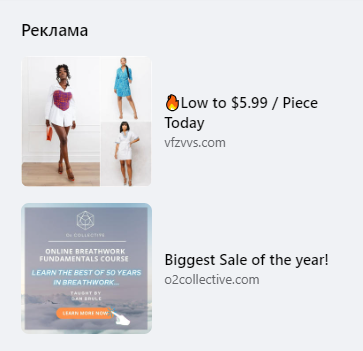
Fig. 8 — Advertising in the right column
- file type: JPG or PNG;
- ratio: 1:1;
- size: min 1080 x 1080 pixels;
- file size: max 30 Mb;
- min width: 254 pixels;
- min height: 133 pixels.
Instant article image ads
In this format, articles open immediately in the app in an optimized reading experience. Ads will be displayed in Instant Article, just like ads in a print magazine.
- file type: JPG or PNG;
- ratio: from 1.91:1 to 1:1;
- size: min 1080 x 1080 pixels;
- file size: max 30 MB.
Marketplace image ads
Marketplace Image Ads are a great way to reach a highly engaged audience that is already in the mood to shop and buy.
- the length of the title is 25 characters (longer titles will be cut off);
- body text length – 125 characters (everything else beyond 125 characters will be collapsed);
- max link description – 30 characters (longer links will be cut off).
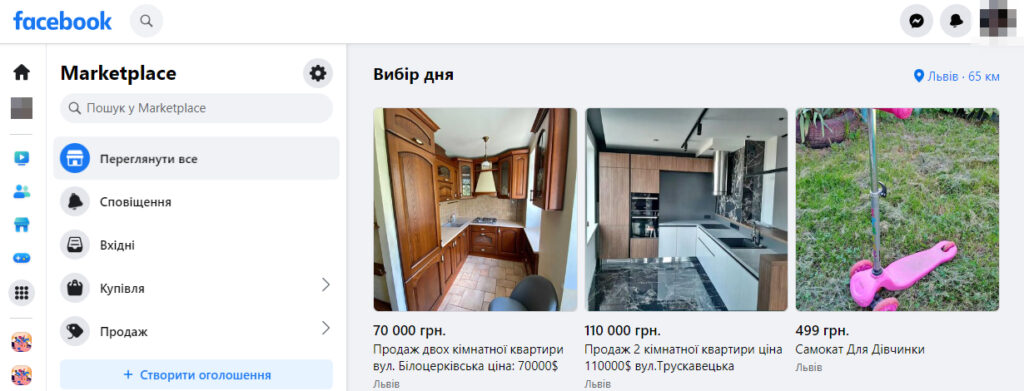
Fig. 9 – Marketplace graphic ads
- file type: JPG or PNG;
- ratio: 1:1;
- size: min 1080 x 1080 pixels;
- max file size: 30 MB.
Search results image ads
Searching on Facebook is a bit like shopping ads on Google: they are placed on a separate tab where you can easily find the content you need both on the Marketplace and on Facebook in general.
Search results image ads help advertisers connect with users who are looking for content relevant to your product and niche.
- file type: JPG or PNG;
- ratio: from 1.91:1 to 1:1;
- size: min 1080 x 1080 pixels;
- max file size: 30 MB;
- min width: 600 pixels;
- min height: 600 pixels.
Business explore image ads
Business explore ads help users discover new companies in niches they are interested in.
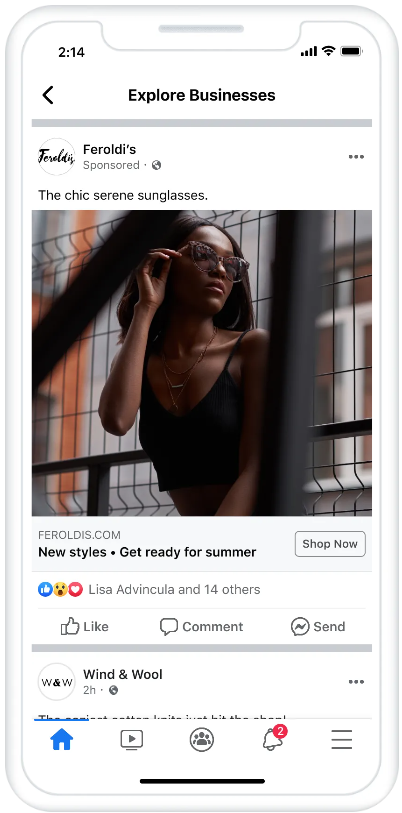
Fig. 10 – Business explore graphic ads (source)
Business Explore content includes both paid advertising and regular publications.
- file type: JPG or PNG;
- ratio: from 1.91:1 to 1:1;
- size: minimum 1080 x 1080 pixels;
- max file size: max 30 MB;
- min width: 600 pixels;
- min height: 600 pixels.
Facebook carousel ad specs
Facebook carousels are a very convenient type of ads: they are images or videos combined in one ad.
Carousels allow you to display from 2 to 10 images and videos in one ad, each with a separate link. The user can scroll through them freely without having to go to a new page.
Carousels appear in several places on Facebook, and their sizes and characteristics are very similar for all of them.
- the recommended length of the title is 25 characters (longer ones will be cut off);
- body text length – 125 characters (longer descriptions will be collapsed);
- max link description – 20 characters (longer links will be cut off).
Feed carousel ads
The carousels that appear between content from friends, family, groups, and pages are a great addition to the classic Facebook feed.
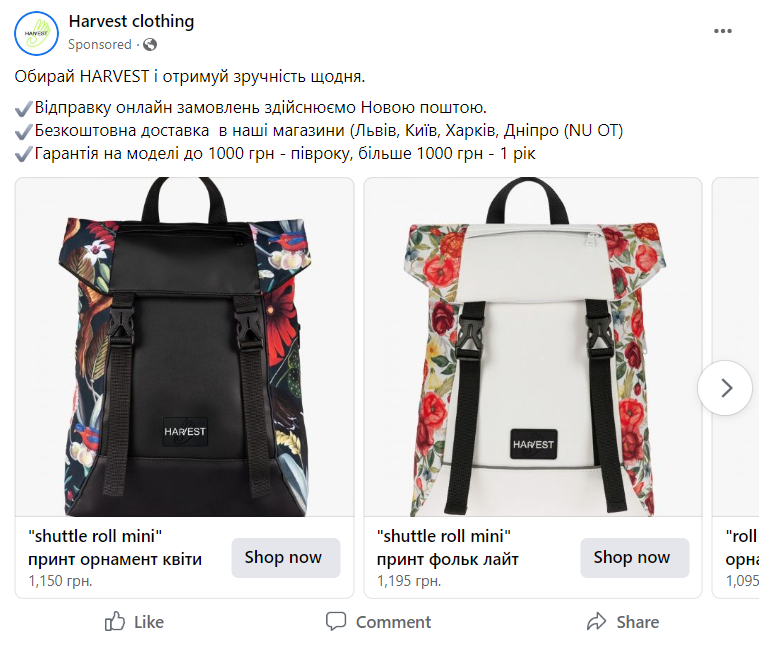
Fig. 11 – Carousel ads in the feed
Characteristics of Feed Carousel images and videos:
- type of image file: JPG or PNG;
- image file size: 30 MB max;
- ratio: 1:1;
- size: min 1080 x 1080 pixels;
- min number of cards: 2;
- max number of cards: 10;
- video file type: MP4, MOV or GIF;
- video file size: max. 4 GB;
- video duration: from 1 second to 240 minutes.
Right column carousel ads
This desktop-only format is most often displayed on the right side of the screen next to Facebook pages, but it can also appear elsewhere.
Keep in mind that only the first card of the carousel is visible in the right column. Facebook recommends not adding text or design elements on top of these images.
Image and video specifications in the carousel in the right column:
- type of image file: JPG or PNG;
- image file size: 30 MB max;
- ratio: 1:1;
- size: min 1080 x 1080 pixels;
- min number of cards: 10;
- video file type: MP4, MOV or GIF;
- video file size: max 4 GB;
- video duration: from 1 second to 240 minutes.
Marketplace carousel ads
Marketplace carousel ads are a great way to reach a highly engaged audience that is already in the mood to shop and buy, and carousels offer an even more interactive viewing experience here.
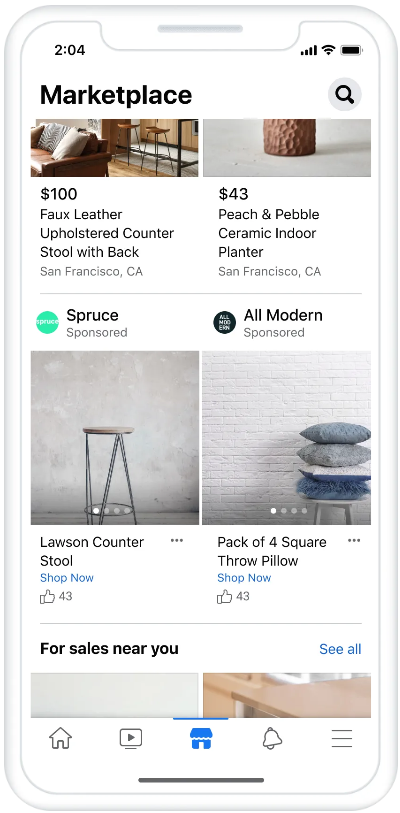
Fig. 12 – Carousel ads on Facebook Marketplace (source)
Characteristics of images and videos in the Marketplace carousel:
- type of image file: JPG or PNG;
- image file size: 30 MB max;
- ratio: 1:1;
- size: min 1080 x 1080 pixels;
- min number of cards: 2;
- max number of cards: 10;
- video file type: MP4, MOV or GIF;
- video file size: max 4 GB;
- video duration: from 1 second to 240 minutes.
Business Explore carousel ads
Business Explore carousel ads are similar to the Recommendations page. The section helps users learn about new companies and brands in niches they are interested in.
Business Explore content includes both paid advertising and regular publications. Carousels are a great way to create an interactive experience and help customers with their purchases.
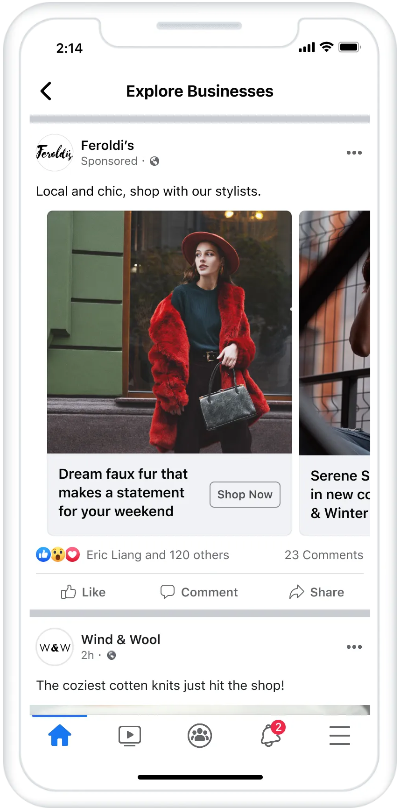
Fig. 13 – Business Explore carousel ads (source)
Specifications for images and videos in carousels:
- type of image file: JPG or PNG;
- image file size: 30 MB max;
- ratio: 1:1;
- size: min 1080 x 1080 pixels;
- min number of cards: 2;
- max number of cards: 10;
- video file type: MP4, MOV or GIF;
- video file size: max 4 GB;
- video duration: from 1 second to 240 minutes.
Facebook story ad specs
More than 1 billion stories are posted on the Facebook app every day. And the number is growing every day. Facebook Stories ads appear to users in between the regular content of friends, brands, and family accounts they follow.
Stories ads use videos, images, and carousels (in Messenger). For any type of content, Facebook suggests leaving a 250-pixel border without text or logos at the top and bottom of the image. In this way, advertisers can avoid hiding their design behind a heart button or a reply box.
By the way, ads in Facebook and Instagram stories have the same size and characteristics, so you can use the same ads for both places. At the same time, you can check where your ads are more effective.
Image story ads
Stories are displayed in full screen and allow you to add emojis, stickers, and interactive features (question boxes or polls) to your ads. Stories will be displayed for 5 seconds or until the user swipes forward.
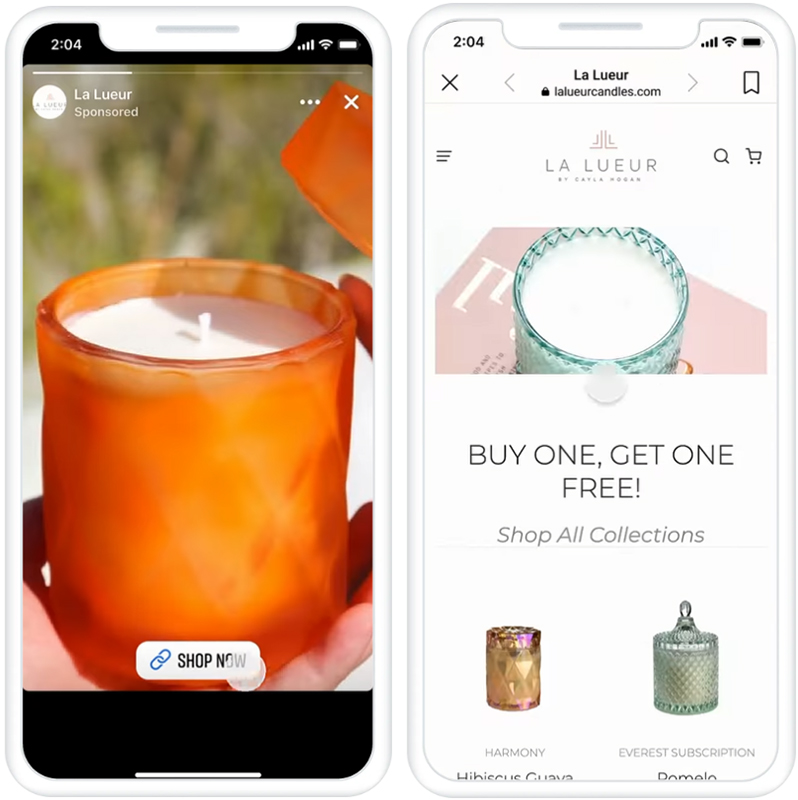
Fig. 14 – Announcement in a story (source)
- file type: JPG or PNG;
- ratio: 9:16;
- size: min 1080 x 1080 pixels;
- file size: max 30 MB;
- min width: 500 pixels.
Video story ads
Facebook Stories are a great way and place to showcase vertical video.
Video story ads will play for up to 15 seconds or less if the video is shorter. You can also split the video into 2 or 3 separate story cards.
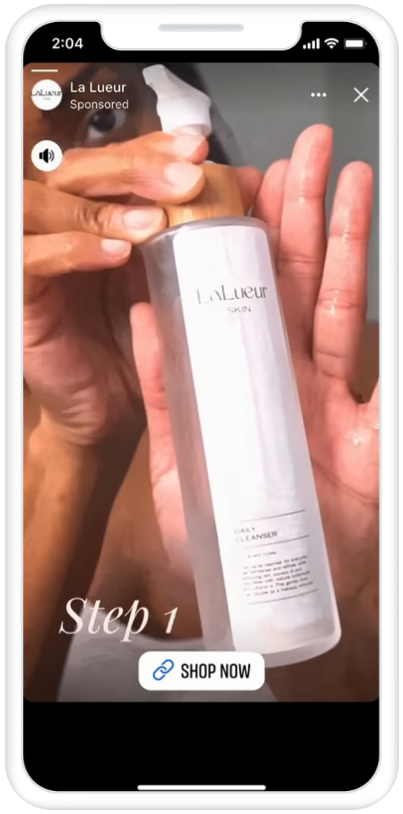
Fig. 15 – Video ads in stories (source)
- file type: MP4, MOV or GIF;
- ratio: 9:16;
- size: min 1080 x 1080 pixels;
- video duration: from 1 second to 2 minutes;
- file size: max 4 GB;
- min width: 500 pixels;
- sound and subtitles: optional, but recommended.
Carousel ads (Messenger Stories)
Carousel ads (Messenger Stories) are displayed in Messenger right above the user’s main inbox. This means that users can view ads without even leaving the app.
These carousels have the same characteristics and dimensions as conventional carousels.
Image and video carousel specifications:
- type of image file: JPG or PNG;
- image file size: 30 MB max;
- ratio: 1:1;
- size: min 1080 x 1080 pixels;
- min number of cards: 2;
- max number of cards: 10;
- video file type: MP4, MOV or GIF;
- video file size: max 4 GB;
- video duration: from 1 second to 240 minutes.
Facebook Reels ad specs
Reels is a format to be reckoned with. Facebook suggests using Reels to explore trends, tell customers about a product, or highlight a brand’s history.
Reels are displayed in the main feed or on the Reels tab, which opens a vertically scrolling viewer (for mobile).
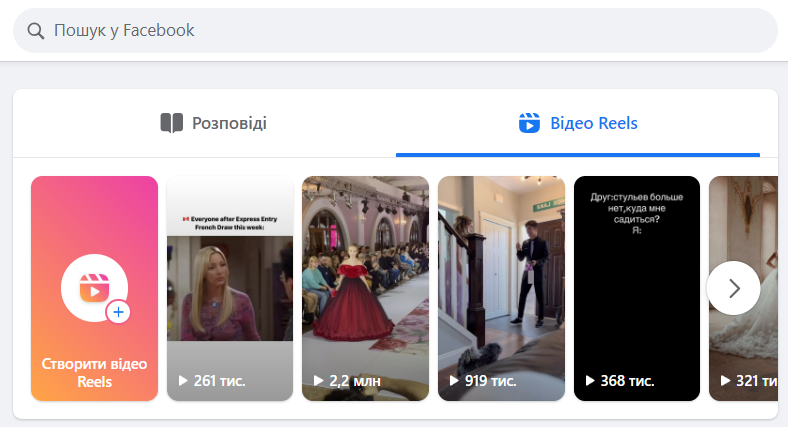
Fig. 16 – Reels Facebook page
Reels are stories that don’t disappear. They will appear in the feed between the regular content of the accounts that users follow. Users can comment, like, view, save, share, and skip reels ads.
Video Reels ads
Video Reels can last up to 60 seconds. And during this time, the brand will have time to tell a story, build relationships, and allow users to see the product in action.
- file type: MP4, MOV;
- recommended ratio: 9:16;
- size: at least 500 x 888 pixels;
- video duration: from 0 seconds to 60 seconds;
- maximum file size: 4 GB;
- sound and subtitles: optional, but highly recommended.
Image Reels ads
You can also make a video from images. That is, you can edit several images into 1 video, add music, design elements, text, etc.
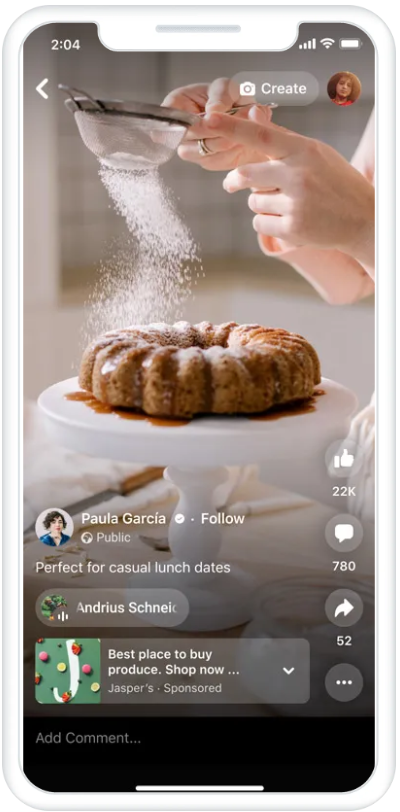
Fig. 17 – Reels with an image (source)
- file type: JPG or PNG;
- ratio: from 1.91:1 to 1:1;
- size: min 1080 x 1080 pixels;
- max file size: 30 MB;
- min width: 600 pixels;
- min height: 600 pixels.
Overlay Reels image ads
Overlay Reels image ads allow you to display a product or service on the Reels view screen.
Static images can appear at the beginning of a video or remain on the screen as a banner. Since these images are very small, Facebook recommends that you don’t add any text or design elements.
- file type: JPG or PNG;
- ratio: 1:1;
- size: minimum 1080 x 1080 pixels;
- max file size: 30 MB;
- min width: 600 pixels;
- min height: 600 pixels.
Carousel Reels ads
Reels can also contain carousels. And such ads have the same specifications as carousels.
- type of image file: JPG or PNG;
- image file size: 30 MB max;
- ratio: 1:1;
- size: min 1080 x 1080 pixels;
- min number of cards: 2;
- max number of cards: 10;
- video file type: MP4, MOV or GIF;
- video file size: max 4 GB;
- video duration: from 1 second to 240 minutes.
Facebook collection ad specs
Collections usually include a cover image or video of several products. When a user clicks on an ad, a full-screen instant experience opens.
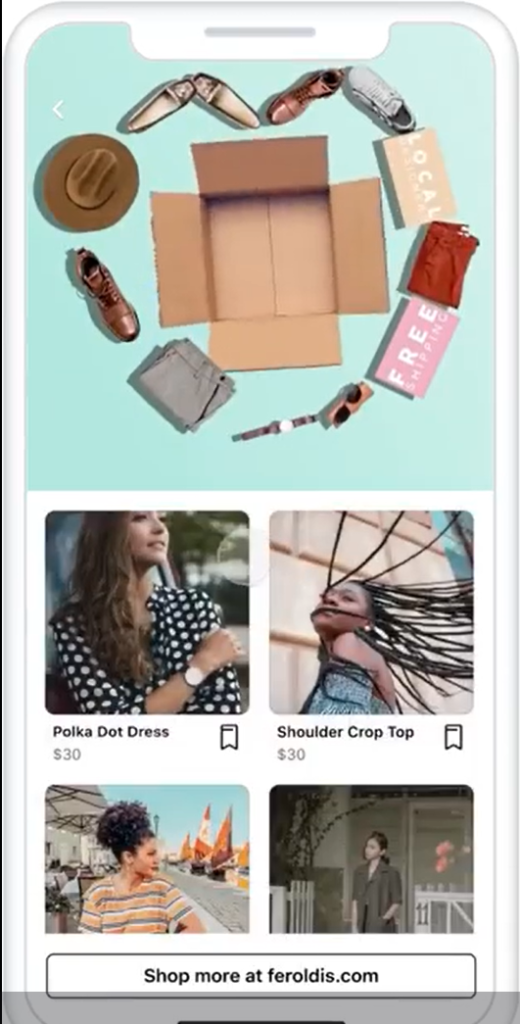
Fig. 18 – Advertising in collections (source)
The concept of advertising in collections is similar to a carousel, but in collections, all content is displayed simultaneously. If necessary, you can set up automatic playback of the cover video when the user scrolls through the collection.
Clicking on the collection cover opens the Instant Experience. This is a full-screen landing page that directs traffic directly to the pages of the advertised products. You can add buttons, carousels, photos, text, and videos to it.
Places to place ads from the collections:
- Facebook feed;
- Instagram feed;
- Instagram Stories.
The number of products shown below the cover image or video may vary depending on the location you select.
Facebook feed collection ads
Feed feed collection ads are displayed between content from friends, family, groups, and pages in a user’s home feed.
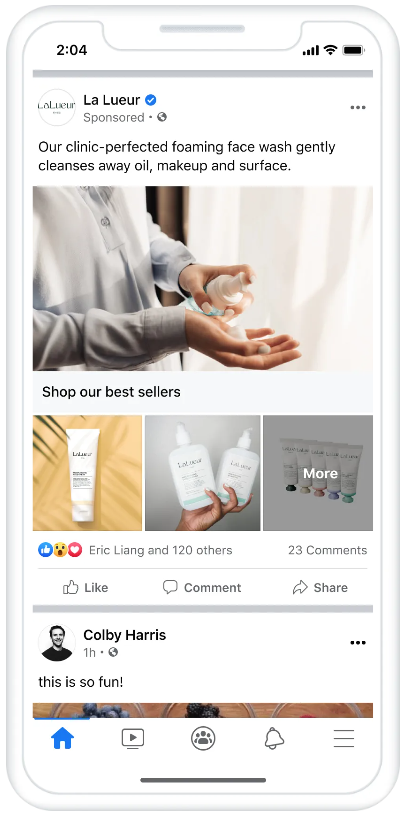
Fig. 19 – Collection ads in the feed (source)
Specs of Facebook feed collection ads:
- size: min 1080 x 1080 pixels;
- ratio: 1:1;
- image file type: JPG or PNG;
- max image file size: 30 MB;
- video file type: MP4, MOV or GIF;
- max video file size: 4 GB.
Video feed collection ads
People watching a video feed can also view ads from the collection. And the content for these Instant Experiences has similar characteristics.
Characteristics of collectible images and videos:
- size: minimum 1080 x 1080 pixels;
- ratio: 1:1;
- image file type: JPG or PNG;
- max image file size: 30 MB;
- video file type: MP4, MOV or GIF;
- max video file size: 4 GB.
Information about text components:
- the recommended length of the title is 25 characters (longer than that will not be displayed in Instagram Collection Ads);
- the recommended length of the body text is 90 characters (text beyond 90 characters will be available after deployment).
So, we have analyzed 4 large groups of Facebook ads, so select the option that best fits your needs and aligns with the goals of your online presence.
Bottom line
To summarize, the following recommendations can be made that will be relevant for all advertising formats:
- define the purpose of the ad (awareness, sales, traffic, leads, engagement, or app promotion);
- define ad formats and placements;
- upload the suggested image and video sizes for all the locations you intend to use;
- if this is not possible, select the image resolution of 1080 x 1080 pixels with an aspect ratio of 1:1 (except for the story format);
- choose the length of titles and descriptions that are shorter than the maximum allowed;
- use as many Facebook ad locations as possible to maximize your audience reach.
Test it now!
Facebook users have plenty of reasons to contact the support team: they can get useful information, send a complaint, or provide feedback about changes in the social network, such as the interface.
Considering that Facebook has an audience of billions of users, most of them can get technical support in writing. Clever algorithms are set up so that most get automatically generated responses. Feedback from the support team must be received within 24 hours of the request. A publicly available contact number, where you can call for a live dialogue with a person, the company does not provide. This is understandable – the Facebook support service does not employ so many managers for the call center.
But contacting the support team by correspondence and finding a solution to problems is quite realistic. In this article, let’s figure out exactly how.
1. Get answers to your questions at Facebook Help Center
Facebook Help Center is a resource that focuses on platform usage, privacy and security, and Facebook account management. Its benefits are:
The information on the social network gathered here is extensive.
The Help Center is available 24/7 and does not require registration, which means you can use it even if the user’s account is locked or hacked if they forget their password.
In addition to the Help Desk, there’s a Frequently Asked Questions section – you can always benefit from other users’ experiences.
There is a link to technical support: facebook.com/business/resource. Click on “Support” in the upper right corner and you’ll get where you need to go. It opens a page with a field in the middle where you can enter your request and probably get a system-generated answer.

Fig. 1 – Facebook help center for business
If you can’t get the problem in one sentence, you’ll need to go to the Help Center tab at the top right again. This will open a list of questions you can address.

Fig. 2 – Subsections: common types of problems
The list of subsections of possible solutions to problems will be visible to everyone. If you actively use advertising and have already spent some money on it, the button “Start” will appear in the center of the screen (it means to start a chat). It will not be visible to other users.
After clicking on the “Start” button, you will need to select the desired advertising account, if it is not the only one. Choose the object for which you need help, from the suggested options, or click on “Other problem”.

Fig. 3 – Selecting a category to find the answer you need
Facebook Help will offer you the best options for solving the issue you are concerned about. If the selection of instructions and similar questions won’t help, you will have the option to write in person with a description of the details.
2. Contacting the administration via Messenger chat
This is easy to do directly from the main page of your social network account. Open the left column and find Messenger.

Fig. 4 – Messenger in Facebook
The query “Facebook support” easily comes up in the search. Click “Test” and wait for tech support to connect.

Fig. 5 – Facebook support chat window
If the system has automatically redirected you to the Help window with text answers to frequently asked questions, go to the list and choose the question that bothers you.

Fig. 6 – The Facebook Business Help Center Help window
Only those Facebook users, who have active campaigns on Facebook, can arrange chats with the Facebook help center. And people who are not advertisers must fill out a contact form. The chats will appear in Messenger and can be active from 8:00 a.m. to 10:00 p.m. daily.
3. Contact via Facebook Quick Help Form
In the upper right corner, click on the triangle, then a help menu will pop up where you need to find Help & Support:

Fig. 7 – Help & Support in the interface
Opening Help & Support will bring up the Help menu, where you can also go to a deeper level – Help Center, Help Community and Report a Problem.
If you select Help Center, you will need to enter your question into the field.

Fig. 8 – Help Center
Go to the second section, Inbox from Support, you will find the messages that tech support sent you. Most often, these are responses to notifications about the content you complained about. In addition, important messages that relate to your account appear here.

Fig. 9 – Inboxes from Support
If it is more convenient to write to Facebook technical support from a smartphone, then you can contact the operator and so. Here’s what you need for this:
- Select “Help and Support” in the main menu

Fig. 10 – Menu from smartphone
2. Go to the item that matches the query

Fig. 11 – Help and Support Tabs
3. State the essence of the problem. It will most likely be related to one of the subtopics of the Help Center.

Fig. 12 – Facebook Help Center
4. Complete your post with screenshots if this option is available to you.
It is worth first to see if there is a solution in the Help Center or in the help community, because most problems are not unique, and only then write to technical support personally.

Fig. 13 – Help Center Sections
You can also leave feedback about Facebook’s performance. Usually the employees are grateful for feedback and will send a response to your recommendations.

Fig. 14 – Feedback on Facebook
In case you are running social media campaigns, Facebook marketing consultants can email you. They often offer free advice for marketing campaigns. Such an email comes from a specific Facebook employee, so you can write directly to that email address explaining the problem.
4. Send letters to direct email addresses
There are several email addresses publicly available online that you can use to contact Facebook support. They change from time to time, but that needs to be monitored. For now, here are the Facebook contact emails that have been in effect until recently:
- datarequests@fb.com – about your data;
- abuse@facebook.com – for reports of abuse of your name, company or content;
- platformcs@support.facebook.com – for problems with refunds, duplicate or repayment of Facebook credit;
- legal@fb.com – for legal issues;
- advertise@fb.com – to contact about problems with Facebook Ads.
This is how to contact support in writing.
5. Schedule a call with a Facebook marketing expert
If written communication doesn’t work for you or if you want to ask the person questions that may be difficult for algorithms to understand, then click on the link and get a short free consultation.

Fig. 15 – Free consultation form

Fig. 16 – Scheduled call form
That said, Facebook honestly writes that this program is not offered to all advertisers, meaning that the call scheduling form may not be seen by every user.
6. General recommendations for those who contact the support
Despite the fact that the chance of correspondence with a live employee of the support service is low, there are certain rules that are better to follow in any case. Then there is a chance that your issue will be resolved more quickly.
- Be as precise and detailed as possible – the more thoroughly the problem is described, the easier it will be for the technical support team to provide you with the necessary advice.
- Attach screenshots so that you can visualize what the issue is. If the problem is technical, specify the OS version of your computer/laptop or the model and firmware of your smartphone. If necessary, specify what browser you use.
- It is better to use the English interface of Facebook and, if possible, write to the support team in English. Of course, this depends on the level of their knowledge.
- Wait for a response on the first request you created, do not create multiple identical ones. This will not speed up the solution of the problem.
So, we have outlined all the possible ways of how to write to Facebook support and get an answer to your concerns. And even though it may not be possible to get in touch with consultants quickly, the company is improving its communication channels year after year. Let’s hope that soon the problem of prompt communication with live specialists will be solved.
Every day, more than 1 billion users around the world visit the Instagram platform and spend about 29 minutes there. Are they watching your rolls, scrolling through your stories, or finishing the videos you post? Is your online presence effective? Instagram Analytics provide this knowledge.
With the help of built-in statistics, you can analyze and identify trends, popular hashtags, and the most viewed content. Instagram is a powerful tool for reaching users and increasing engagement. Instagram Analytics provide insight into the effectiveness of posts and the account as a whole.
What is Instagram Insights
Instagram Insights is Instagram’s own free feature that helps you view account, post, and follower data.
Some people call Instagram Insights Instagram Analytics, others call it Statistics. Instagram itself says Statistics in the Settings. In terms of functionality and data provided, Instagram Insights is close to Google Analytics, so if you already have experience using Analytics, you will quickly understand Instagram Insights.
Instagram Insights shows a variety of data, including:
- hours of subscribers activity;
- number of recent visitors;
- gender and demographic indicators of the audience, etc.
These Instagram Analytics help:
- find out who your target audience is (who is your buyer);
- find out what content brings effect (purchases, subscriptions, starting a dialog in Direct);
- adjust the online presence strategy in time;
- track the results of work on the platform.
How do I get access to Instagram Insights? Instagram Insights is currently only available for content creators and business accounts. The good news is that any user can switch to a professional account at any time. Just turn on your business or creator account in Settings.
How To View Instagram Insights on Desktop
In the desktop version of Instagram, full-length Statistics is not yet available for viewing. However, you can get basic analytics of posts — there is a clickable text View Statistics below each post.

Fig. 1 — Post statistics in the desktop version
The pop-up window contains the total amount:
- likes;
- comments;
- shares;
- saves;
- reaches;
- impressions;
- new readers.
For other content formats, the option to view statistics as of January 2023 does not work.
How to view Instagram Insights on Android and iOS
So, let’s move on to viewing the statistics. My account is the creator’s account. To access account statistics, I go to my Instagram profile and tap the button with three dashes in the upper right, then Get Statistics or Insights (for Android and iOS users, respectively).

Fig. 2 — How Analytics looks like for Andriod and iOS users
*In the following, I will use screenshots of Settings from iOS.
Now let’s navigate through the tabs and figure out the metrics that the social network offers to track.
Instagram Analytics. Account Overview tab
As soon as you click on Instagram Insights, you are taken to the Overview tab.

Fig. 3 — Instagram Insights, Overview tab
In the header of the tab, we can select the time period for research:
- last 7 days;
- last 14 days;
- last 30 days;
- previous month;
- last 90 days;
- a custom period that you can choose.

Fig. 4 — Selecting a time period for Instagram statistics
Select Last 7 days and click Refresh.
The tab provides information about the account as a whole:
- account reach;
- accounts that interacted;
- total number of readers;
- statistics on the content shared by the account owner (posts, stories, reels, videos, live broadcasts);
- active promotion (meaning advertising).
Each of the items has its own separate tab with advanced statistics. Let us consider each of them.
1. Instagram Insights Accounts reached
First, let’s understand the difference between reach and impressions.
Reach is the number of Instagram users who saw our content (the network counts the number of accounts).
Impressions — the number of times a post/reach/story is displayed, etc. The number of impressions is usually higher than the reach figure. After all, 1 account can view your story/post etc. 2 or more times.
The Reach tab provides information about:
- audience reached (by city, country, age range of users, gender);

Fig. 5 — Data on reached accounts
- content reach (posts, video rolls, stories, videos/live broadcasts);
- profile actions (visits).

Fig. 6 — Covered accounts tab
Followers and non-followers — we see how many of our subscribers and non-follower accounts have viewed the published content.
The content metrics themselves will be discussed in the next tab.
2. Instagram Insight. Content Interactions
Interacted accounts is the number of accounts that interacted with your content (posts, stories, shares, videos, and live streams) by liking, commenting, saving, sharing, and writing to Direct.

Fig. 7 — Interacting accounts tab
In other words, interaction is an indicator of audience engagement. Audience engagement primarily affects the impressions of posts in the feed and stories to followers, as well as the impressions of a profile in Instagram search (recommendations).

Fig. 8 — Interaction with content
On the Interaction tab, in the Content interactions section, click on View all and select the type of content you are interested in:
- posts;
- reels;
- stories;
- video;
- Instagram Live.

Fig. 9 — Analytics by content type
Let me remind you that since August 2022, any video shorter than 15 minutes has become a ruler. So since then, we have been able to access statistics on previous video publications up to 15 minutes. And all the data on such videos is now available in the Rills section.
Information on video types and formats that will be useful to you is collected in the Instagram Video Guide. Go ahead and read the article, it contains both recommendations with examples of video creation and ideas for your videos.
Where to See Instagram Photo and Video Statistics
Publication
You can get post statistics in 2 ways:
- by clicking on View Statistics under each post in your profile;
- by going to Instagram Insights.

Fig. 10 — Post statistics
Post statistics provide comprehensive information about the photo: reach, number of interactions, etc.
What should you pay attention to? On the views:
- from the Home tab;
- from another source;
- from the Search tab.
Why and how did the post end up in the Featured (aka Recommendations)? The current post uses music selected by the built-in Instagram tool. And the network encourages users to use all the features of the platform.
Reels
Reels is a video of up to 15 minutes, a tool for increasing engagement organically.
Instagram promotes it in every possible way, and for good reason. After all, the ads collect several times more views and have a significant reach. And this helps the account grow without financial injections from the owner (I mean advertising).
The Content section contains filters:
- by content (post, reel, story, etc.);
- by date;
- сортування за метрикою (sorting by metrics (comments, likes, shares, reach, reproduction, distribution, interactions with the reels).

Fig. 11 — Reels statistics
Content analytics can be analyzed up to the last 2 years (only if your account was professional 2 years ago, and you did not switch it to personal for some time — in this case, the statistics are reset and will be displayed from the moment the professional account option is restored).
In the Metric field, you can choose to sort by 7 metric options:
- comments;
- likes;
- saving;
- reaching;
- playback;
- sharing;
- interactions with reels (the sum of comments, likes, shares and saves).

Fig. 12 — Sorting by Reels metrics
Usually, when it comes to influencer marketing, experts recommend paying attention to the reach and growth of the number of followers. After all, if a person subscribes to you through a rally, they like your content and will be willing to continue interacting with it, helping your account to grow organically.
Story
A story is a short sketch with a photo or video up to 1 minute long that is available to users within 24 hours of publication.
Story stats display the most popular stories by impressions. Story statistics have a built-in filter for 17 story metrics and sorting (newest, ascending, descending). I wrote about each metric in detail in the article Engagement in Instagram Stories.

Fig. 13 — Statistics of stories
Instagram stories usually have their own set of ideas and content plan. The number of stories users have is much higher than the number of posts or reels.
What metrics are important to a marketer, and what should be emphasized in stories:
- back — how many times people went back to the previous story;
- exits — how many times people “scrolled through” a story to exit the Stories section altogether;
- next story — how many times the story viewers moved to the next story;
- impressions — the total number of times a story was viewed, including repeat views from accounts;
- skip ahead — how many people have skipped ahead to see your next story;
- reach — how many individual accounts have viewed your story (regardless of how many times that individual account has viewed it);
- clicks on stickers (links, mentions, etc.) — the number of times a sticker was clicked, i.e., clicked to a link page, profile, geolocation, etc;
- replies — the number of people who replied to your story in Direct;
- profile visits — the number of times people went to your profile from this story;
- sharing — the number of times your story was shared or forwarded;
- tracking — the number of users who followed your profile after viewing the story.
Instagram Live broadcasts and videos
I wrote in detail about Instagram live broadcasts and long videos in the article How to upload videos + ideas. Follow the link to get inspired by the material we’ve collected and find new ideas for your videos.
3. Instagram insights: Total Number of Instagram Account Readers
The tab contains data on the geo, demographics, and periods of activity of your content readers. This allows you to determine the best time to publish to attract as many followers as possible.

Fig. 14 — Total number of readers tab
- follower growth;
- geolocation of followers by cities and countries;
- age range of followers (All, Women, Men);
- activity periods by days of the week and hours.
The most useful information in this tab is the periods of reader activity, i.e. when the majority of the account’s audience is online. We know that interaction with content affects the visibility of a profile on the network. These interactions are especially important in the first time after publication – this is how Instagram understands whether the posted content is interesting and whether to show it further in the feed and Recommendations.
From the screenshot above, we can see that there are almost no interactions with content around 3 a.m., as well as few at midnight and in the morning, and a lot of them around 9 p.m. So we conclude that subscribers most often view content in the evening.
Although now, with the power outage due to the russian invasion of Ukraine, the only thing we know for sure is that subscribers view content when they have internet access. And now it can be at 3 am. But we focus on the highest column in the tab and publish our content then.
The data obtained will be useful for choosing the most appropriate time for publication.
Instagram Metrics You Should Be Tracking
The metrics you should track depend on what you want to achieve with your Instagram presence.
For a blogger or content creator, this is primarily engagement, reach, and audience size.
For ecommerce, it’s sales and clicks on the website.
Instagram Engagement
Instagram’s algorithm rewards posts that have high engagement. Which posts will be the first in users’ feeds largely depends on how quickly people interacted with them after they were posted.
Instagram is interested in showing users the content that is more likely to be responded to.
Instagram Reach
Reach indicates brand awareness among readers.
Look at the reach, not the impressions of the content. If someone scrolls through the feed and reads your post 5 times without reading it, Instagram counts it as 5 impressions, and the reach is 1.
Reach tells you which posts appear in the feeds of most people. If a post reaches a high percentage of your followers, it means that people are interested in and engaging with your content. Also, pay attention to the time of publication – the majority of your followers should be online.
Number of Subscribers and Follower Growth
The number of followers affects the overall performance of an Instagram account. The more subscribers you have, the greater your reach. The same goes for engagement and clicks on the website.
Growth rate of subscribers compared to the number of subscribers
We’re talking about upward or downward growth: that is, how many more people are following you every month. If it’s +2, +4, +8%, your account is doing well, it’s attracting readers. If, on the contrary, it’s +8, +4, +2%, then you’ve lost something – there’s an urgent need to analyze your content strategy and change it.
Instagram statistics does not have such a counter – comparison with previous periods. Here you will have to work manually – record the number of followers each day/week/month in a table and calculate the % of changes yourself. Or you can use a third-party analytical tool to calculate it.
Website Clicks on Instagram
Click-throughs are an indicator of how many people clicked from your Instagram profile to your website or landing page.
Click-through rate is important for increasing traffic and sales. If your website doesn’t receive conversions from Instagram, try changing the CTA in your profile header and stories.
Test a link sticker with a new CTA – use the utm tag to track traffic from Instagram. You will also need Google Analytics data for this.
Many different factors affect the performance of your content on Instagram, including profile visuals, audience engagement, brand image, captions, hashtags, etc. Tracking Instagram statistics over time gives you a better idea of what type of content helps you achieve your social media presence goals and adjust your development strategy.
Online advertising is an essential tool for any online store. Google Shopping accounts for 65% of all clicks on Google Ads.
Product feed is the basis of the Google Shopping promotion strategy. If the feed is formed incorrectly, ads may not pass moderation or be very costly. For example, a user searched for an orange Ikea wardrobe, but red dressers were also shown on the query. And all because the color and name were incorrect. So what to do?
Here are some tips for working with Google Shopping that will definitely work for you.
1. Google Shopping campaign structure
First of all, let’s look at the structure. The structure of a campaign depends on how different campaigns are organized. How many campaigns there are in total, which products are included in which, how many ad groups there are, etc. It is in the improvement of the campaign structure that the best ad optimization lies. A good campaign structure allows you to bid on the products and search queries that are most valuable. Let’s take a look at the 4 most common campaign structures.
Structure 1 — one undivided campaign
There is one campaign with one ad group and one product group that contains all products. In fact, this means that every product and every search query is equally valuable to the business, as no one distinguishes between them.
In this case, the only thing you can do to optimize is to raise the maximum CPC for all products.
Structure 2 — one campaign with several product groups
You can divide products into different groups based on certain attributes:

Fig. 1 — Distribution of the all products group by attributes
Google Shopping allows you to divide product groups based on:
- categories;
- brand;
- product identifier;
- condition (new, used);
- product type;
- channel;
- channel exclusivity;
- one of 5 special tags.
For example, you can first categorize all products based on product type, then by brand, and at the third level by product ID.
This campaign structure allows you to set bids based on category, brand, or individual product level (item ID).
If you’re not satisfied with the default attributes for campaign splits, you can use custom tags to add additional information to your feed (such as price or margin data). This allows you to set higher bids for more expensive products with higher margins, while keeping bids lower for less profitable products.
Structure 3 — several campaigns with different products
Create a campaign based on attributes. Go to the settings of the newly created campaign and use the assortment filter to include only a part of the products.

Fig. 2 — Setting up a Google Shopping campaign
This means that you can have separate Google Shopping campaigns based on brand, product type, or category. It is also advisable to use a special label to create a campaign that contains only the top products.
The biggest advantage of multiple campaigns is that you can set a separate budget for each campaign. This means that you can allocate 80% of your budget to bestsellers and 20% to other products. If they are all mixed in one campaign, it is harder to control the budget.
Structure 4 — multiple campaigns with the same products
Having multiple campaigns with the same products allows you to target each campaign to a specific set of search queries.
The biggest advantage of this setup is that you can set different maximum CPCs depending on how valuable the search query is. The most common use case for this is to separate branded search queries from general search queries. This way, you can set higher bids on branded search queries while drastically reducing the maximum CPCs in the overall search campaign. This is a great alternative approach.

Fig. 3 — Brand and search campaigns (example from the Internet)
The example above shows 2 campaigns for the same brand, one targeting branded search queries and the other targeting general queries.
Look at the difference between CTR and CPC. If you intended to achieve the same result with a single campaign, the overall profitability would be much lower because the average CPC would be much higher.
Important: If you are using this campaign structure, make sure that the campaign priority settings are correct.
2. Using the GTIN
GTIN is a global product unit number.
Valid GTIN numbers are usually provided by the manufacturer, and although they are no longer a mandatory attribute, it is worth paying attention to them.
Benefits of GTIN:
- the information about the advertised product is correct, so the information of competitors will not contradict yours;
- increase in ad impressions;
- prevents counterfeits from entering the market;
- users can compare products.
Cases when the GTIN number is not available for adding to the feed:
- you are the only seller of the product (for example, you embroider shirts by hand);
- if your product is vintage or antique;
- if you sell manufacturer’s spare parts;
- if you sell books published before ISBNs became mandatory (1970).
Therefore, if the feed is set up correctly, it is your ad that can lead to the purchase of a product when comparing products.

Fig. 4 — Reseller announcements on request for Koss BT740iQZ
Google uses the GTIN to retrieve data from the supplier’s catalog and place your ad in an auction with other resellers of the same product.
3. Optimization of product names
Optimizing product names is the key to making ads relevant to users’ search queries.
How to optimize product names:

Fig. 5 — Header structuring guide from datafeedwatch.com
It will be effective to include key queries in the title of the ad. Therefore, it is better to place important information at the beginning of the title, because if the title is shortened on the SERP, the important information will be displayed first.
Scheduling regular updates to your account will prevent discrepancies, warnings, and account suspension if any changes are made to your feed.
4. Optimize color attributes
It’s more efficient to respond to a user’s color request right away: the consumer knows exactly what color of product they’re looking for, so meet their needs and provide these options.

Fig. 6 — Product color selection option
In some countries, color is a mandatory attribute for clothing and accessories:
- Brazil;
- France;
- Germany;
- Japan;
- United Kingdom;
- USA.
Avoid mismatches. Advertisers will receive rejection of ads from Merchant Center due to mismatched landing page information. Google scans the data on landing pages and matches the color attribute in the feed with the color value on the landing page. So don’t change the colors.
Tips:
- Write the full name of the color (and for Chinese, Japanese, or Korean, experts recommend including one character), and it is also advisable not to use number substitutions (for example, HTML colors).
- You can add 1 primary and 2 secondary colors to a product.
- If the product is made of precious metal, combine the material attribute with the color attribute (for example, silver earrings or a gold ring.
5. Вибір правильного зображення
Product images are the first thing customers see when they view an ad. Therefore, the images must look good.
Tips for optimizing images:
- use high quality images (not pixelated, where the product can be clearly seen);
- make sure the attributes match the image (color, size, material, etc.);
- pay attention to watermarks on images – they should not be present.
If your product attributes do not match the image, the user will see this on request:

Fig. 7 – Search results of a yellow anta backpack on request
Irrelevant search results will repel potential customers, and sales will be unlikely. After all, if a consumer is looking for a yellow backpack, why would they want a black one with a yellow clasp?
By the way, we found the following study on advertising for clothing and accessories stores: 82% of respondents said that they would be more likely to click on a Google Shopping ad first if the ad contained an image of a person wearing the product rather than the product itself. So keep in mind.
6. Using regular expressions with data feeds
A regular expression, or RegEx, is a sequence of characters that defines a search pattern that is used to match patterns to strings or to match strings, which is a similar operation to find and replace.
The feature is useful for optimizing data feeds, as it allows you to map many characters using only one line.
How to use regular expressions:
- find and replace repeated words;
- correct several sizes at once;
- remove too many spaces between words, and more.
For example, if the title contains additional spaces between words, not just at the beginning and end, the regular expression can match the additional spaces between words: replace_pattern ( \s, ‘ ‘, [title] ). This way, you can optimize the work with the product feed.
7. Sales and promotions
Consumers love sales and promotions. Special offers usually lead to an increase in sales. How can you use this when optimizing your Google Shopping ads?
For example, we have an online store for accessories and:
- on Cyber Monday, we decided to organize a 25% discount sale of belts;
- to track the sales of these belts, we created a promo code BELT25 and will use it in ads;
- create the promote_id attribute and fill in the promo code with only those belts that we intend to sell;
- go to your Google Merchant Center account and create a promotion on the promotions tab (if the promotions tab is not visible, fill out the promotions form);
- enter your conditions for the code to be triggered (start and end time of the promotion, specific products that fall under the promotion, promotional code).
The customized promotion can be used for 3-4 months without updating. This is convenient if the store offers free shipping on a regular basis or holds a long-term sale of certain products.

Fig. 8 — An example of setting up a promotion for a campaign (example from the Internet)
Product Feed for Google Ads:
If you have multiple promotions, and they change frequently, try using the Google Promotions Feed to upload promotions to Google Merchant Center.
A Google Ads product feed is a spreadsheet (TXT file, .xml file, or Google Sheets) that contains all ads and related data.
Attributes to include in the feed:
- advertising_identifier;
- product applicability;
- offer_type;
- long_title;
- effective date of the promotion;
- redemption_channel.
Please note that equity feeds are not available in all countries:

Fig. 9 – Countries for setting up promotions
So, by applying the tactics described in this article, you will definitely improve your Google Shopping results and get ahead of the competition. But that’s not all. To stay competitive, you need to regularly monitor and optimize your settings.
Google regularly makes changes to the Google Shopping platform. So stay tuned for updates and get an edge over your competitors.
Have you ever heard the phrase “Content is the king”? Then you work in digital. Content is king, that’s right. But not all 100% of the content created in the world is viewed by users.
Content is created to be consumed. And for it to be used, the content must be visible. This is the task of SEO promotion.
And SEO specialists can help. In this article, we will analyze how to do it. Let’s talk about content pillars and how to find and create them.
What is a content pillar?
A successful marketing campaign that generates revenue is based on content. Both paid advertising and organic search results are focused on it. A user comes to a page with content that provides them with a useful answer to the question they entered in the search.
The business strategy focuses on topics, not keywords. And our task is to create topics that will attract visitors. And then to branch out the main topic, highlight its components and reveal them. Create valuable content around one main topic. English-language sources use the term content pillar.
A content pillar is a meaningful and informative piece of content on a particular topic or theme that can be divided into several sections or fragments to provide even more material.
An example: a guide where you can make a separate article from each step.
A content pillar, in simple terms, is a large piece of content that can be transformed into many smaller pieces of content.
Thus, one large article can easily be broken down into narrow blog posts, infographics, video posts, emails, social media posts, etc. to reach and engage different users across different channels.
The content segments you create should correspond to:
- brand goals;
- the values it represents;
- brand voice;
- positioning in the marketplace.
It’s important to remember that each pillar should represent the type of relevant content your subscribers want to see.
Types of content:
- commercial;
- educational;
- aimed at creating a community;
- entertainment;
- one that engages.
Regardless of what type of content is being created: an informational guide on a blog or a landing page for a product group, in order to convert it to a purchase, the main page or article must be optimized for a specific keyword or phrase that satisfies the user’s intent.
Key elements of content columns. Examples
Depending on the goals of content marketing, there are 3 main formats of content segments:
- how to;
- what is;
- guide.
Let’s look at examples of each and see how they work.
Content type How-to
The How-to format provides step-by-step instructions for going through any process. In the end, the user will be successful – a ready-made formula for work, a certain end result. And here is the author of this content format acts as an expert.
The How-to format is aimed at an audience with informational and transactional intentions. This way, you will attract more traffic to your website, because How-to requests are among the most frequent.
Let’s take an example from our blog – an article about stickers on Telegram. Here is the details:
- described the process of creating a sticker;
- gave us 3 ways to draw it;
- told how to upload your own sticker pack to Telegram.
We shared our experience and collected all the important information in one place.

The article is ready to use — take it and do it. Or you can go further and write a separate, more detailed article on each method of creating a sticker. For example, make a rating review of apps for creating stickers on each OS: iOS and Android.
Content type What is
A long-form article is a great candidate for the lead role in the cluster. After all, the What is format covers the topic in detail. If the chosen topic is quite complex, it can be divided into separate topics and subtopics. This will create a cluster of articles united by a common topic.
Let’s take our article “What is Internet Marketing” as an example.

For each H3 subheading, we have a separate large topic or even more that reveals the essence of the subheading:
- What is contextual advertising? Types;
- What is SEO and why do you need search engine optimization?
- Social Media Marketing: the main points;
- What is Email-marketing.
Then, from each large topic, we made separate subtopics about narrower concepts. The result of the what is format is knowledge on a particular topic.
Content type Guide
For the Guide format, the web page should provide an authoritative overview of the topic with various elements and pages that link to it. What it can be: sub-topics and supporting elements, any blog articles, links to resources or products, related questions, FAQs, or videos grouped around the main topic of the main page.
For example, our article “Video on Instagram: a complete guide to video in the feed, stories, live streams, and reels”.

For each content point, we have a separate blog post that explains the issue in even more detail, helps you familiarize yourself with video formats, and contains the most valuable thing — ideas for implementation. As a result, the user receives tips on how to create a video and how to implement ideas. That is, a ready-made video.
By adding images, videos, infographics, each cluster is optimized for its specific purpose. In addition, visual elements are also well suited for publishing on social media, email newsletters, and other channels to promote the main topic of the content.
How to define the main elements of social media content
Content clusters on social media are crucial when it comes to the fidelity of social strategy implementation.
We offer 5 steps to building a content strategy.
1. Target audience
We start by looking at the target audience. Someone has to use the content we create. And we need to know this consumer.
For selected audience groups, we need to provide relevant content on a regular basis to keep users’ attention and give them what they need. Otherwise, they will go to competitors. This means minus visits, minus traffic to the site, and ultimately a decline in search rankings.
What kind of information do we need:
- data on what users like;
- which of our products find the greatest response;
- the pain points of our audience;
- how our content resonates with our audience.
We have to speak the same language with the audience, in their language. And each social platform may have its own adaptation of messages to subscribers. For example, your Instagram and TikTok are aimed at the TikTok generation, while your blog and LinkedIn are aimed at millennials.
How to get data about your audience:
- conduct a poll using the built-in sticker Poll on Instagram;
- view previous audience analytics data;
- experiment with new types of content and see the effect;
- analyze competitors’ content and write out their working topics;
- review sales data to understand which content influenced the time spent on the page and what exactly led to lead generation and conversions.
In Google Analytics, information is presented in the form of a map of user interactions with the site (an example from our case study on the promotion of an Irish pub in Basel).

Constantly tracking audience needs and optimizing your content plan are your clear steps to implementing your content strategy in dedicated channels of communication with users.
2. Analytics of the presence channels
Analytics data provides primary information about content. Analytics will show what is popular among the audience, which topics work and which do not.
Track your best and worst blog topics and social media posts. Use built-in social media analytics tools.
If the goal of your presence is to increase brand awareness, analyze reach and engagement. If the goal is conversion, then in addition to engagement, look at clicks and conversions from posts and stories.
- conduct research on competitors, see what resonates with its target audience;
- Track the effectiveness of your social media content on a convenient schedule (daily, weekly, quarterly, etc.);
- track the effectiveness of publications — which ones resonate and which ones fail;
- compare the performance of your blog and social media channels. It may be that there is no point in working in some networks anymore.
Check the comments on a regular basis to find new ideas for content. Write down everything interesting and promising.
3. Create your own content clusters
By the third step, we had figured it out:
- what content the audience wants to see and what information our users are looking for;
- how our products and services can meet the needs of different audiences;
- what content works better than competitors’;
- which content formats resonate best with different target audiences and on different platforms;
- what are the pain points of your audience.
Now we determine how and what kind of content we will create to meet the needs of our audience groups. Each presence platform can have its own content plan.
Let’s take the blog of the ITForce marketing agency as an example.

What Analytics tells us about the topics our audience was interested in in August:
- 6 articles about Instagram;
- 4 — about Telegram;
- 2 — publications about Google courses and products.
The rules and operation of search algorithms and social networks change literally every month. And in order to be in trend or retain existing subscribers, you need to be aware of changes related to websites and social platforms. That’s why publications about social media and how to work with them are in demand.
Information on content formats:
- 7 are how-to articles;
- 3 publications in the guide format;
- 1 what is article.
The How to format is the most popular. This is a completely practical topic, so its popularity is understandable. This is followed by guides and course selections for professionals.
What about future topics? We assume that we should cover our work on Instagram and Telegram. And what about article formats? How to make both have better attendance.
Now let’s take a look at the upcoming subtopics.
How to make an Instagram profile header – add a specialization to the end and get a new subtopic. Or we will tell you in great detail how to properly design a profile bio for different businesses, because users have the most problems with the bio section.
How to create and promote a Telegram channel – you can add a specialization, you can make 2 separate detailed guides on How to create and How to promote, or you can also create a case study (of course, if you have worked with Telegram), where you can provide analytics data that will confirm your expertise.
The Google Analytics 4 setup checklist is an extensive topic, and it is advisable to write a separate article on each of its points.
So, how many content clusters do you need for your website? This is up to you to determine, based on the data you’ve collected. Alternate content formats, but focus on the most traffic-oriented ones. The same applies to social media, where you should take into account your content format: photos or videos, stories.
4. Where to find ideas for content groups
We collect the conclusions from the previous paragraphs of the guide and use them in our work:
- top topics from the past (data from Google Analytics) – writing information that is relevant today or creating a longer and more detailed series of content with a main topic;
- competitor strategy – testing competitors’ ideas in publications and stories;
- help from services – researching keywords and matching them with our content;
- answering questions from the audience in the comments under the publications and the Direct.
Earlier, we wrote a detailed article with 10 ideas for content sources. But keep in mind the current situation. There is a war in Ukraine. Some topics may not be relevant today. We told you how to work with a content strategy after February 24.
5. Content plan: how to create it
Now it’s time to break the formed clusters into separate subtopics, write them, and schedule publications in each channel.
What about content groups? You can alternate between post and service categories: SEO, Paid Advertising, SMM, Content Marketing, ASO Promotion, or you can write about the most relevant first. Outline the main topics, but leave room for hot topics and newsworthy events.
For algorithms (both search engines and social networks), it is important to keep the platform (website, social network) up to date. This is how the algorithms understand that the blog has not been forgotten, the site is updated, and search engines visit it more often. The ranking of a website in search engines depends on its updatability.
Your content plan can be written down in a paper notebook, Google Sheets, a publication planner, etc. For example, this is how our content plan for the ITForce blog looks like. We use Google Sheets:

We have a separate tab in the table for future blog topics and ideas.
How to create a content plan for social media? A social media audit will help you with this. How to conduct a social media audit and what types of content should be in your profile? Our step-by-step guide will help you develop a content strategy for social media.
Bottom line
To summarize. A content group or cluster is the main topic of a content block. It is the basis of the structure of related subtopics. Then your ideas and imagination work.
To identify the main topics, we use the built-in analytics of the website and social networks. We take the working headings of competitors’ blogs or posts and make our version better.
We involve subscribers in the work on the platforms. We rely on the portrait of our audiences. The main content is created for them, for users. And it must meet both the user’s content and the requirements of search engines.
Facebook as a social network is an incredibly popular means of communication. But its users have problems with the use and protection of personal data. Facebook has repeatedly violated the terms of use of personal correspondence and other personally identifiable data. That is, you cannot rely on Facebook’s privacy policy.
1. Basic rules against unauthorized use of data
Here are some simple tips to keep your social media account safe from unauthorized use:
- use a reliable password to log in to the account (experts recommend creating passwords using case, that is, a combination of upper and lower case letters, at least 8 characters),
- do not give your email address, phone number and Facebook password to third parties;
- do not leave your mobile number and personal photos in various communities with open access for everyone;
- restrict user access to your account (for example, “Friends Only”);
- do not follow suspicious hyperlinks. You can scan them through an antivirus program;
- turn off device geolocation when using a social network.
But there are also such necessary actions that we forget about, and then we are surprised by the leakage of information. Let’s talk about them separately.
2. Monitoring alerts for suspicious logins and stale sessions
In the settings, there is an option to notify you of a login from a browser or device that you are not using. It makes sense to review this information from time to time. The option is in the additional protection settings in the “Settings” -> “Security and authorization” section. Please note that the login notification feature via Messenger or SMS will soon be unavailable, but an in-app notification will be automatically enabled instead.

Fig. 1 – Security settings
It is also worth exiting all old sessions that are not enabled, leaving only active ones.

Fig. 2 – Active sessions
3. Check permissions for apps
Any application on Facebook, for example, the test “Who are you from the series…”, upon installation, asks the user for a list of permissions, which may include access to private messages. The most common mistake is to give the application access to post on our behalf or use information about our friends on the social network.
How to get rid of wrongly given permissions
- Go to settings.
- Go to the “Applications and sites” section.
- Click on the one of interest and choose from the menu which permissions you want to grant. It is better to delete unnecessary applications immediately, even if there is no extra information there.

Fig. 3 – An example of unnecessary applications
4. Register Facebook for verified mail services
Check in the general settings of your profile to which email account your page is registered. It should be a mail with good protection, which you use regularly and which works in a country with friendly legislation for the Ukrainian consumer.
5. Two-level authorization and its possibilities
Two-factor authentication provides an increased level of account protection by confirming the consumer’s login via a mobile alert. It is configured through the menu item “Security and Authorization” -> “Two-step verification”. There you need to select the item “Use two-step verification” and turn it on.

Fig. 4 – Two-step verification
Facebook offers three protection methods to choose from: SMS, security key, or authentication app.

Fig. 5 – Methods of protection
Select the desired option and click “Use”.
When two-factor authentication is enabled, now every time you log in from a new browser, you will have to enter your password and use a second method of protection. Everything is clear with the SMS code, so let’s consider using the application and the security key.
You will need to download an application for a smartphone (Android or iOS), which generates codes directly on the phone, without requiring a connection to a mobile operator. To generate codes, Facebook recommends using applications such as Google Authenticator or Duo Mobile. Next, click “Configure”, open the application on your smartphone and scan the QR code.

Fig. 6 – Settings through the application
A line with an account and a six-digit code should appear in the application, which will be updated every half a minute. After entering the code, you will get to the social network.
Backup recovery codes will come in handy. You’ll need them if you lose your second-factor enabled phone and don’t have devices listed as trusted by Facebook. To get them, find the option “Recovery codes” -> “Configure” and enter the password. 10 eight-digit codes will appear on the screen. Each of them can be used once as a second factor to log into your account, after which it becomes inactive.
A trusted device is one from which the option to not ask for a second authentication factor on Facebook is selected. It should only be your laptop or phone. You can add or remove a device where two-factor authentication is configured.
There is also a Security Key option. It is not common, but it works.

Fig. 7 – Entrance for help a security key
For additional protection on Facebook and Instagram, an advanced Facebook Protect security program was created. In Ukraine, it was launched in December 2020. This program verifies the account’s security settings – at a minimum, password and two-factor authentication.
First, it will additionally monitor for suspicious activity, especially from new devices and locations, and add new security features that will come to Facebook. Secondly, administrators of social network pages received Page Publishing Authorization. That is, if the page administrator has connected Facebook Protect, all other users must enable two-factor authentication and confirm their country of residence.

Fig. 8 – Explanation from the Help Center
Common problems you may encounter with Facebook Protect:
- blocking the accounts of those who have not connected the program. It is solved by connection;
- codes not working – the reason may be due to logging in from a new device or incorrect code generation on a device where the wrong time is specified.
When two-factor authentication is enabled, backup codes must be generated and saved in a safe place (untrusted devices, because the codes are needed when they are lost).

Fig. 9 – Protection check result
Therefore, the protection of your data in social networks is your own business. Any trace of you on the network will remain there for a long time, even if you have already deleted the file, photo or message. When posting information on your Facebook account, keep in mind the possibility of third parties using it. The less personal data you post, the lower the risk of their loss.
YouTube users watch about a billion hours of video every day. It is possible to make money from this – thanks to the systematic publication of videos and the interaction of viewers with them. Interesting content forms the loyalty of subscribers, therefore, the number of viewing hours increases, interaction with the audience increases. Is it easy to monetize your YouTube channel in 2024?
We offer five options for earning through YouTube. Practice shows that each rarely becomes profitable by itself, but their successful combination increases the chances of successful monetization. Youtube Creators has videos for beginners that you should watch before starting to monetize your own channel.

Fig. 1 – A selection of educational videos from YouTube
1. Through the affiliate program
YouTube is the only social network that has a partnership program with users. Advertisements are displayed according to social network algorithms, or advertisers independently set up targeting for their goods/services. If your channel is included in the list of those on which this ad will be displayed, you will receive money.

Fig. 2 – Content monetization rules
To partner with YouTube, you must have:
- from 1000 subscribers on your channel;
- from 4,000 hours of viewing content over the past year;
- enabled two-step verification;
- no active warnings about breaking community rules.
In addition to the direct partner program of YouTube, there is a multi-channel (MCN), which combines several YouTube channels. Network representatives help bloggers earn from content. Multi-channel affiliate networks have a large commission, but offer a simplified withdrawal procedure, additional promotion tools. This is the best option for beginners.
The difference between YouTube’s direct affiliate program and multi-channel is the portion of advertising revenue that the blogger receives. In the first case, you receive 55% of the advertisers’ payment, in the second – about 25%.
It is worth noting that the lowest withdrawal threshold is $100, and it grows accordingly with the development of the channel. To withdraw the money received from the partnership, you need to open a foreign currency account in the bank, enter payment details in your personal account and confirm your e-mail.
The amount of income from the YouTube affiliate program depends on:
- the subject of the video clip and its quality;
- the number of advertising impressions – at least the first 30 seconds of the video must be watched by the consumer;
- advertisement format;
- audience location;
- video coverage.
You can get acquainted with the exact indicators of your income in your personal Google AdSense account or in your personal account of the partner program. Free services such as YouTube Analytics, SocialBlade or WhatStat will help you predict your own income level, taking into account the current indicators of your channel.
How to monetize videos on YouTube?
- After downloading the video content, you should go to the “Video Manager” section.
- You need to click next to the desired video “Change” or “$” next to it, on the “Monetization” tab.
- Next, select the ad formats that will be shown in the video and click “Save”.
2. Earnings on YouTube Shorts
YouTube Shorts is a short video sharing platform. Since 2022, residents of Ukraine have joined those who have the opportunity to connect to the monetization of short videos. So, now there is an opportunity to shoot short videos and receive a bonus from YouTube from 100 to 10 thousand dollars per month. The reward is calculated from the special fund YouTube Shorts, the budget of which is equal to 100 million dollars.
The amount depends on the country of residence of the viewers, the number of views and other factors. Money will be available through the AdSense account associated with the channel.

Fig. 3 – Example of YouTube Shorts
3. Sale of own goods or services
Depending on the topic of the channel – for example, gardening, Harley motorcycles, interiors, etc. – you can advertise your products by placing a link below in the description. That is, it can be a self-made mosaic of ceramic tiles in your bathroom, if you are looking for customers. Or the grown flowers you offer on your garden blog. Or a channel with test drives of motorcycles sold by your online store. Thus, the site will receive constant traffic from the YouTube channel.

Fig. 4 – An example of a thematic link
4. Direct cooperation with advertisers
If you have more than 500k subscribers, good view statistics and significant YouTube reach, advertisers and brands will automatically contact you, especially if you have a common theme. Possible formats of cooperation are product demonstration in videos, reviews and newsletters, or placement of referral links on the channel.
For example, on Yevhen Klopotenko’s channel, there are useful links under the video after a detailed description of the dish. Yes, under the recipe for baked potatoes with lard in the description there is a link to the Varus chain of stores: https://varus.ua/uk, https://go.varus.ua/, https://www.facebook.com/varusua/ , https://www.instagram.com/varus.ua/?h…

Fig. 5 – Cooperation with advertisers
If you are not receiving incoming offers, there are advertising exchanges that take a commission, but find customers and reduce risks. So you open access to advanced statistics, and the potential customer chooses your or another channel.
5. Donate on streams
A stream is a real-time broadcast, for example, playing a game on a computer or demonstrating everyday life: people travel, share the process of mastering creative skills, for example, playing the guitar, cooking classes. With a successful stream, the “presence effect” should work for the viewer.
SuperChat allows you to collect donations during streams – a viewer can donate funds during a live broadcast by pinning this viewer’s comment above others, so you will notice and react faster. This option is available on all channels with connected monetization. The size of the commission for withdrawal of donations can be found only through the YouTube Analytics and AdSense reports.
6. Which YouTube trends should entrepreneurs pay attention to in 2024:
- a general increase in the number of ads – they will now be shown on all channels, regardless of whether they have monetization enabled or not. Now it will be easier to find the target audience;
- vertical format of videos – last year’s statistics showed that 70% of users watch YouTube from smartphones, that is, vertical content is more convenient for viewing on phones;
- short entertainment videos in the YouTube Shorts format, which, by the way, are often shot in a vertical format;
- integrated online services for the sale of branded merchandise – it is convenient for bloggers, because you can sell goods directly from YouTube. The channel owner only needs to place the assortment on his page in a special section.
So, in order to make money on YouTube, you need to create quality content, constantly interact with the audience and notice their consumer attitudes. And in order not to get banned, remember the following rules:
- plagiarism of other bloggers will be removed from the network;
- it is forbidden to post content about narcotic substances, alcohol, ambiguous topics (religious and racial discussions);
- it is not recommended to use too much obscene language in videos;
- you cannot monetize content that humiliates or provokes;
- YouTube does not like recordings of risky and dangerous actions, cruelty.
It is possible to earn from running your own YouTube channel, the main thing is to gain the affection of the audience and work on it systematically. Good luck!
